Prices
A customer wants the date changed on their Christmas poster. Another needs an approved design resizing for a flyer. Then a restaurant updates three prices on its festive menu after you've already prepared the artwork.
Small changes can quickly become big demands on your time when Christmas print starts gathering pace.
For the right jobs, Canva can make creating, adapting and managing customer artwork much quicker. The important part is knowing where it fits into your workflow and making sure speed doesn't come at the expense of getting the finished file right for print.
Here's how to use Canva to keep suitable Christmas artwork moving while maintaining control of the job from brief to print.
Canva is particularly useful when the customer needs straightforward artwork created or an existing visual idea adapted quickly.
You might already have an approved Christmas campaign that now needs applying to several products. Perhaps the customer has supplied branding and imagery but needs help turning it into finished promotional material. Or an existing design simply needs a date, price or offer changing.
Those are very different jobs from creating a complex brand campaign from scratch.
Customer request | How Canva can help | Print opportunity |
|---|---|---|
Christmas menu update | Change dishes, prices and dates within an established layout | |
Festive promotion | Adapt an approved campaign into different formats | |
Christmas gift promotion | Apply existing branding to a simple seasonal offer | |
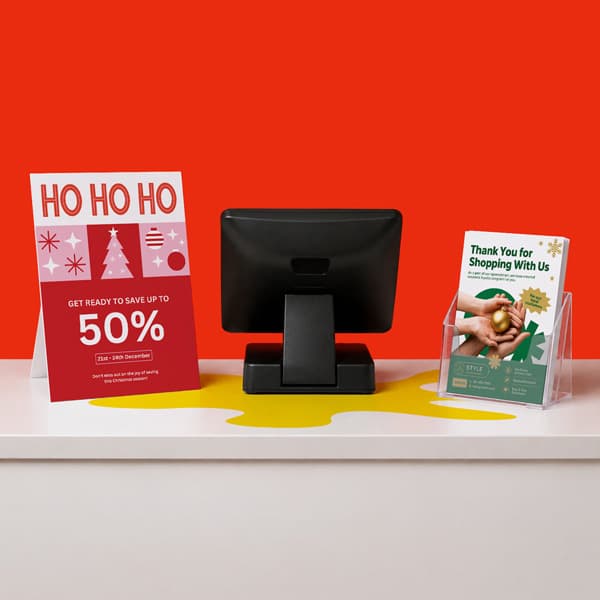
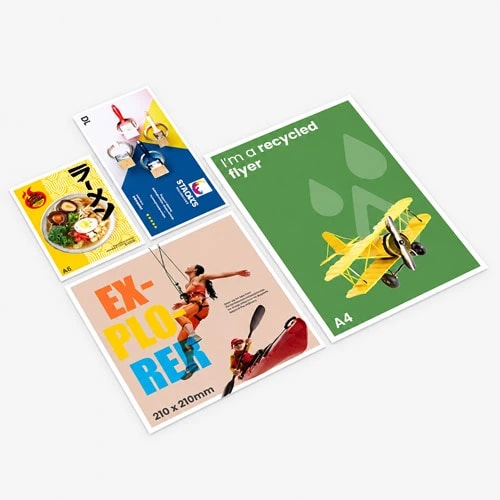
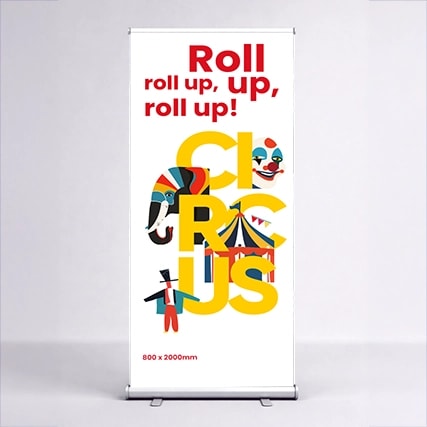
Christmas event | Carry one visual concept across promotional formats | Flyers, Posters and Banners |
The common thread is that Canva gives you a practical working file that can be amended and reused without rebuilding straightforward artwork every time something changes.
Speed shouldn't dictate the design tool for every print job. Complex packaging, technically demanding artwork, specialist finishing requirements and detailed documents may still be better suited to professional design software.
The same applies when a customer's existing artwork relies heavily on specialist effects or has already been built in another programme. Recreating it in Canva purely for convenience can introduce unnecessary differences between versions.
The question isn't whether Canva can technically be used. It's whether it gives you an efficient, controlled route to the finished result.
For straightforward Christmas promotional artwork, customer amendments and campaign adaptations, it can be particularly useful. For more technically demanding work, use the tool that gives you the control the job requires.
There is an important distinction between a Canva design template and a WTTB Canva template. Canva's own design templates can provide inspiration and a visual starting point.
WTTB Canva templates are different. They're blank starting points created at the correct dimensions for specific products, helping you begin with the right canvas rather than setting the size up yourself.
You can browse our free WTTB Canva templates for products including flyers, posters, cards, invitations, signage and hospitality print.
Starting with the correct template is especially useful when you're adapting one customer's Christmas campaign across several formats.
A poster and an A5 flyer might carry almost identical messaging, but simply shrinking one design into the other isn't always enough. Text hierarchy, spacing and image crops may need adjusting to suit the new proportions.
Treat every format as its own piece of artwork, even when they all belong to the same campaign.
One of Canva's biggest advantages for repetitive seasonal artwork is the ability to establish a visual direction once and reuse it.
Imagine a restaurant approves its Christmas menu artwork.
That core design could then provide the visual starting point for:
The customer gets a more consistent campaign and you don't need to reinvent the visual direction for every request. The same approach works outside hospitality.
Customer | Start with | Adapt into |
|---|---|---|
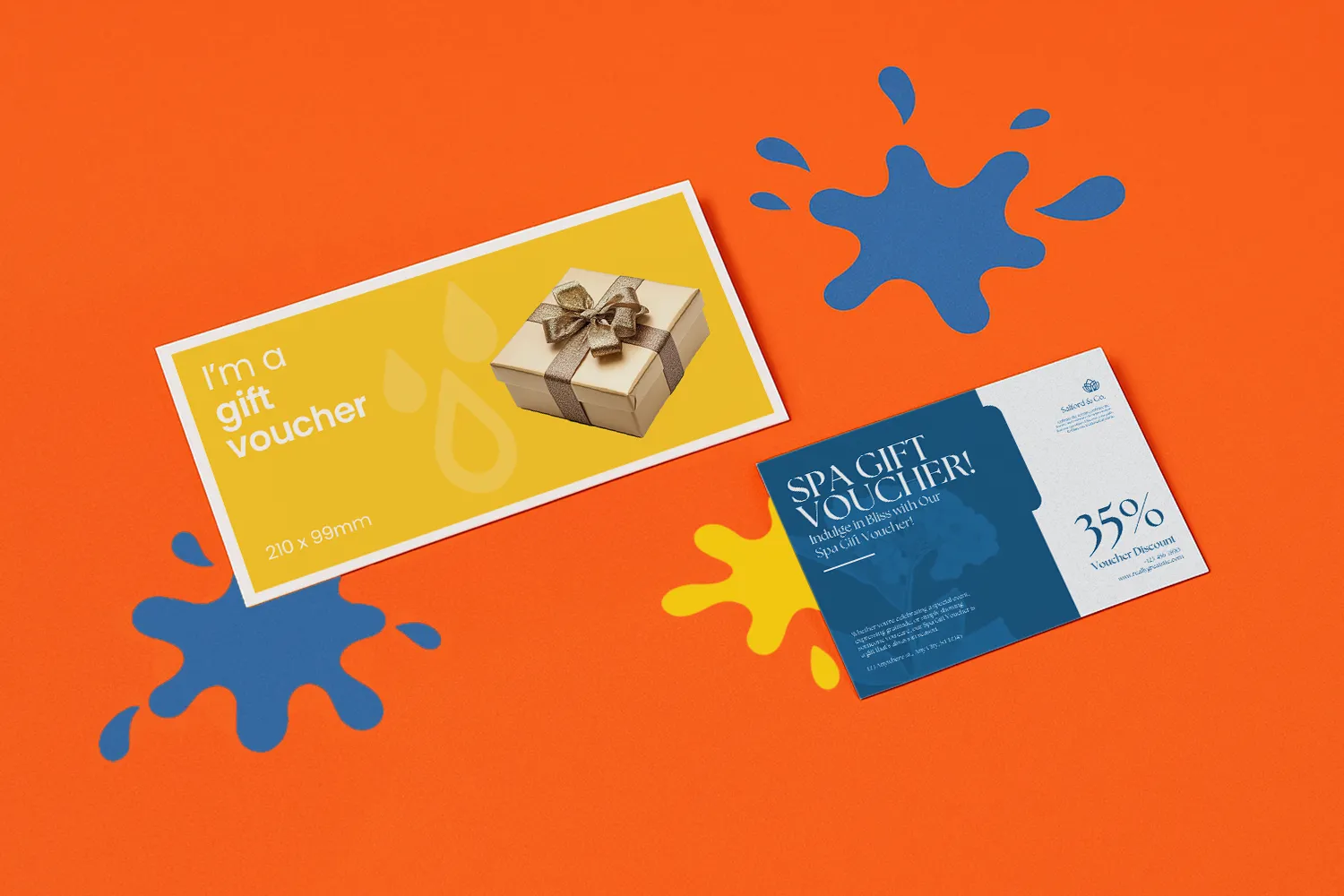
Retailer | Christmas sale artwork | Posters, Flyers , signage and gift vouchers |
Restaurant | Festive menu | Posters and Flyers |
Event organiser | Christmas event identity | Flyers, Posters and Banners |
Local business | Seasonal promotion | Flyers, Posters and gift vouchers |
Corporate customer | Christmas campaign artwork | Cards, promotional materials and event signage |
This is where Canva becomes less about designing one product and more about creating a repeatable artwork system.
A simple process can stop speed turning into confusion when several customer jobs are moving at once.
Identify every product and format at the start where possible.
If they've requested a Christmas menu, ask whether they'll also need posters, table promotions or flyers using the same artwork.
This doesn't just uncover additional print requirements. It means you can plan the artwork as one campaign rather than discovering each format separately later.
Open the template for the product and size you're actually printing.
Our Canva template library provides blank starting points for a growing range of products.
Create the main piece of artwork using the customer's approved branding, imagery, copy and Christmas campaign style.
This should become the visual reference for the remaining pieces.
Before adapting the design across another five products, make sure the customer is happy with the key content.
Check names, dates, prices, offers, contact information and the overall creative direction.
Otherwise, one late change can turn into six late changes.
Take the agreed visual direction and apply it to the remaining formats.
Don't simply resize and assume the job is finished. Look at each format individually and adjust the hierarchy, spacing, crops and amount of content where necessary.
A piece of text that is comfortably positioned on a poster may become too close to the edge on a smaller flyer.
Bleed, safe areas and image quality should be checked for every finished format rather than only on the original design.
Christmas artwork often contains information that can change.
Check:
If the same information appears across several pieces, check it everywhere.
Once the content is final, move from customer approval to print preparation.
Use our Canva Print Checklist to check size, bleed, safe areas, image quality, colour setup and export settings before the file is uploaded.
For print, Canva provides a PDF Print export option and lets users include crop marks and bleed when downloading artwork. Canva also recommends checking margins and bleed when preparing designs for print. (Canva guidance on margins and bleed)
When several files have been amended in quick succession, version control becomes just as important as the design itself.
Before uploading, make sure the final PDF matches the latest customer approved artwork.
Christmas artwork has an unfortunate habit of changing.
Rather than treating every amendment as a new job, keep one clearly identified master design that remains the source for every variation.
If a piece of information appears across several formats, make a note of where it is used.
For example, a Christmas event date might appear on a poster, flyer and banner. If the customer changes it, update all three before sending anything back for approval.
The same principle applies to prices, URLs, telephone numbers and offer terms.
A quick amendment isn't useful if an outdated version reaches print.
A customer approving the way their artwork looks doesn't automatically mean the file is ready for production.
Those are two separate stages.
1. Customer approval should confirm things such as:
2. Your print check then looks at the technical file.
Check | What you're looking for |
|---|---|
Size | Is the artwork built for the correct product and dimensions? |
Bleed | Do backgrounds and images extend far enough beyond the trim? |
Safe area | Are important text and logos comfortably away from trimmed edges? |
Images | Are photographs and graphics suitable for the finished print size? |
Colour | Have you considered how screen colours may reproduce in print? |
Content | Are the latest approved dates, prices and details present? |
File | Are you exporting the correct finished version? |
Export | Has the artwork been downloaded using the appropriate print settings? |
Keeping the two stages separate means your customer remains responsible for approving their content while you retain control over preparing suitable artwork for print.
Resizing artwork can create another problem.
A photograph that looks perfectly acceptable in a small piece of print may not hold up when the same campaign is expanded into a much larger format.
So if a customer asks you to turn their Christmas flyer artwork into a poster or banner, don't assume every image can simply be enlarged.
Check the original image quality and consider the intended finished size before adapting it.
Our Canva Print Checklist includes image quality checks, while the Canva Hub also includes tutorials on preparing and exporting artwork for higher quality print.
You don't need to remember every Canva print setting each time a customer sends you a job. Our Canva Hub brings the main setup resources together in one place, including templates, tutorials and a print checklist.
Resource | When to use it |
|---|---|
Starting point for WTTB Canva guidance | |
Starting artwork at the correct WTTB product size | |
Quick guidance on setup, bleed, colour and export | |
Final checks before sending artwork to print | |
Broader advice on managing customer Canva artwork | |
Planning customer conversations and print opportunities across the festive season |
Use the resources as part of the workflow rather than waiting until a file causes a problem.
Canva isn't a shortcut around good artwork preparation.
Used for the right jobs, however, it can give print resellers a faster way to create straightforward customer artwork, manage amendments and turn one approved Christmas concept into several connected pieces of print.
Start with the correct template. Keep one controlled master design. Get the important information approved before adapting it. Then check every finished format independently before it reaches production.
The result is a workflow that can move quickly without losing sight of the details that matter in print.
Explore the WTTB Canva Print Hub for templates, tutorials and artwork guidance, or use our Christmas Print Planning for Resellers to plan which festive opportunities to discuss with your customers next.
Posted on October 24, 2025 by Emma Thompson
Related topics: