||

Prices


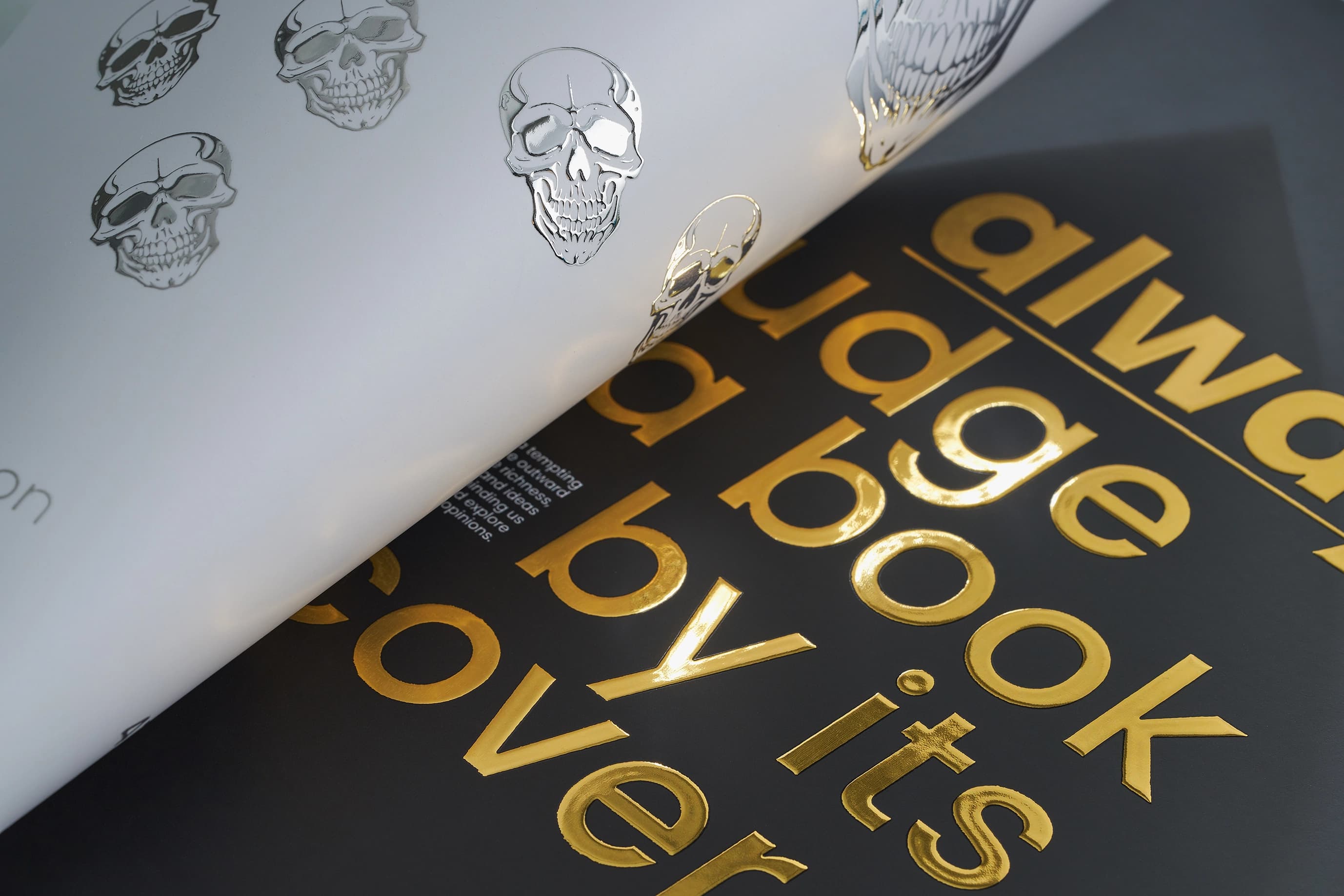
Scodix© gold or silver foilingA beautiful metallic gold or silver foil finish to enhance specific areas of your design.
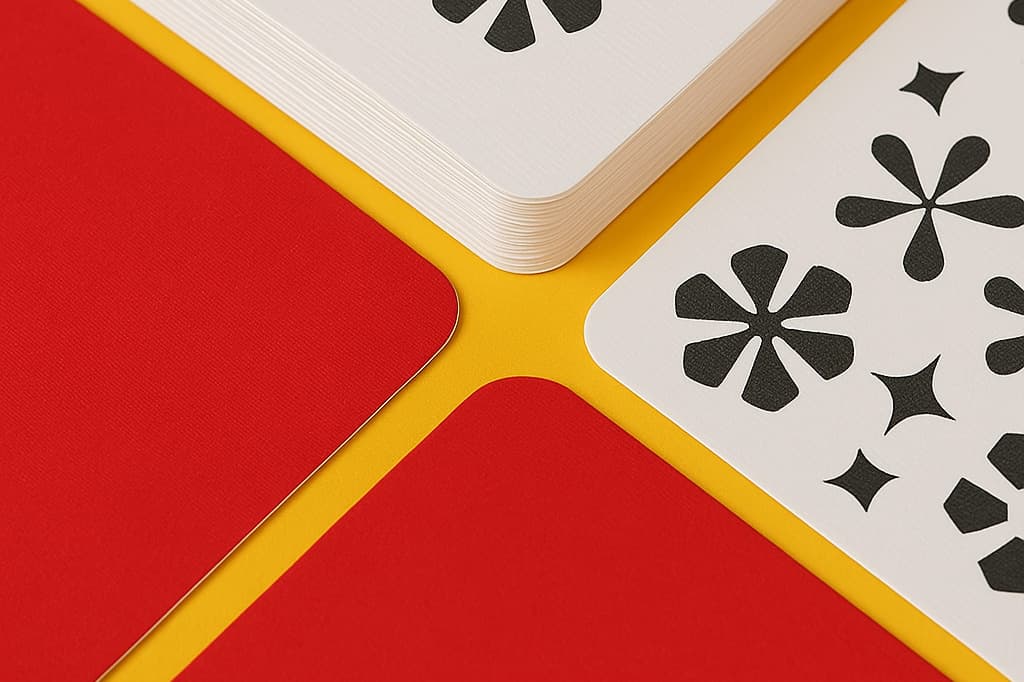
Round cornersAdd a smooth round alternative to the standard square corner of your print.
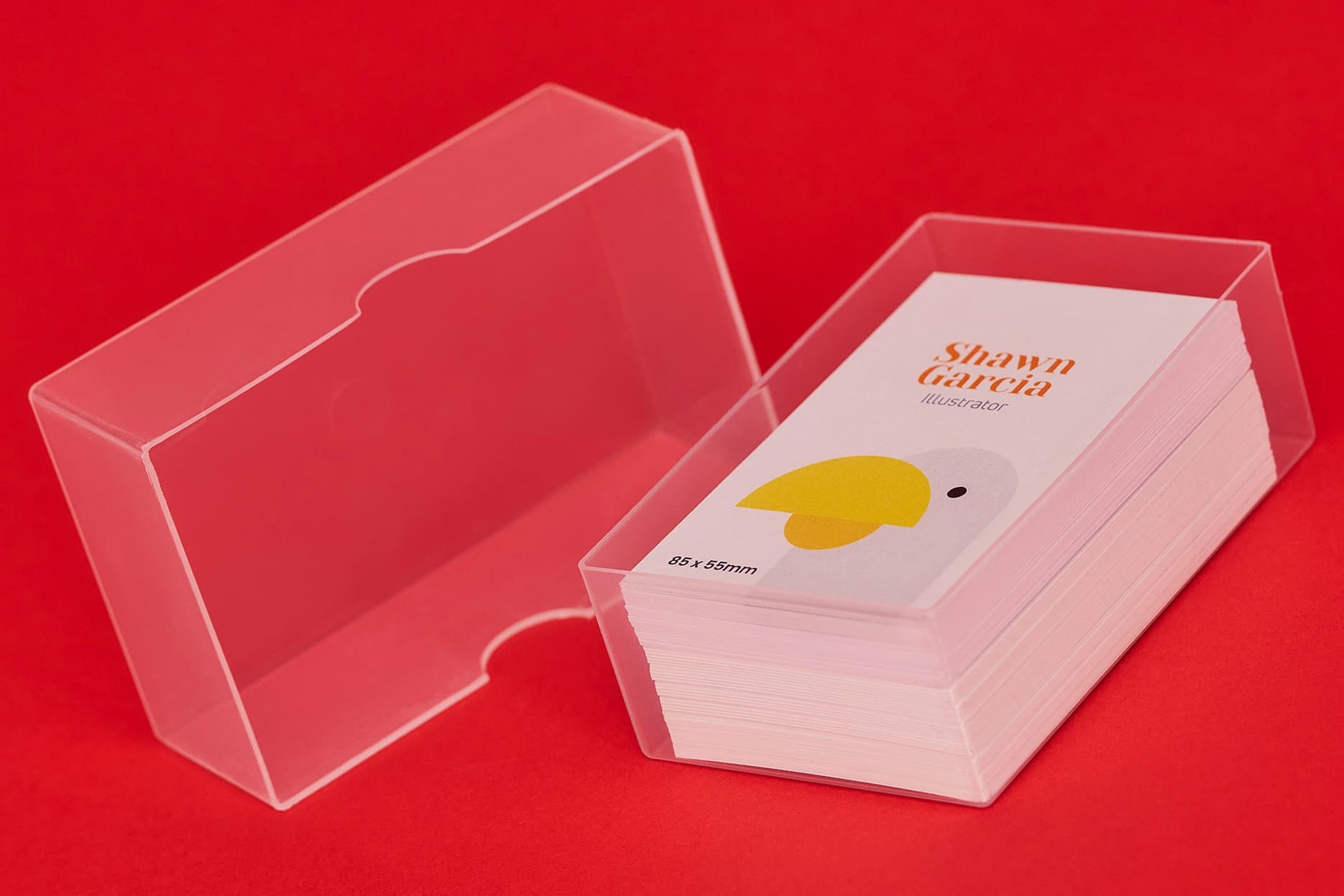
Recycled plastic business card boxAdd our handy, durable storage box to your order. Made from recyclable rigid clear plastic.
 Unparalleled knowledge,
Size
Orientation
Printed Sides
Foil colour
Corner finish
Optional extras
Quantity
Essential
23-point automated check
Free
Advanced
41-point inspection by a prepress technician
FREE if using your Print Perk Points at checkout
Order summary:
Foil Business Cards

Quantity: x100 | Paper Stock: Silk | Paper Size: 85 x 55mm | Orientation: Landscape | Printed Sides: Single Sided | Foil Colour: Silver Foil (One Side) | Colours: Full Colour | Corner Finish: Square Corners | Lamination: Soft Touch (Both Sides) | Material Weight: 400gsm | Print Settings: Small Format Flat Products |
Artwork Technical Check: Essential - FREE
Unparalleled knowledge,See what our customers say about Foil Business Cards
Scodix© gold or silver foilingA beautiful metallic gold or silver foil finish to enhance specific areas of your design.
Round cornersAdd a smooth round alternative to the standard square corner of your print.
Recycled plastic business card boxAdd our handy, durable storage box to your order. Made from recyclable rigid clear plastic.
Product description
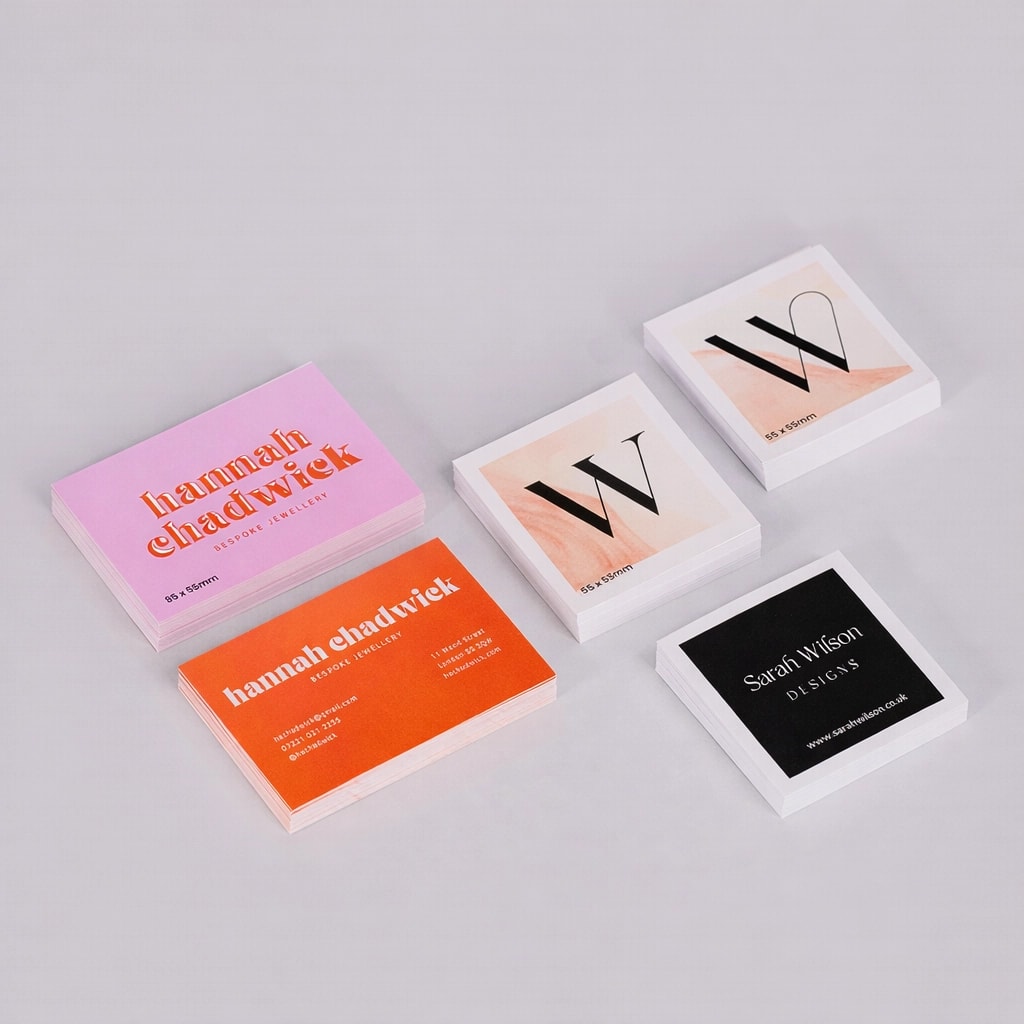
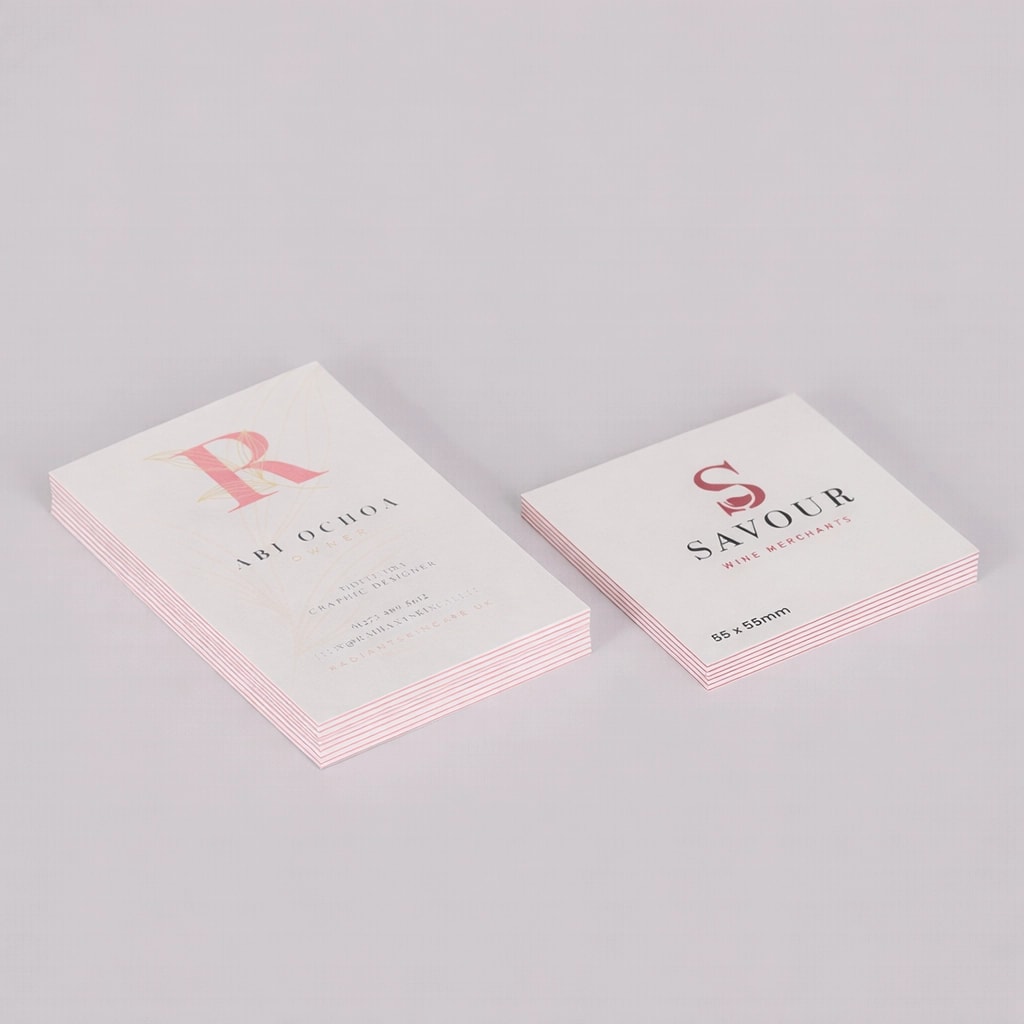
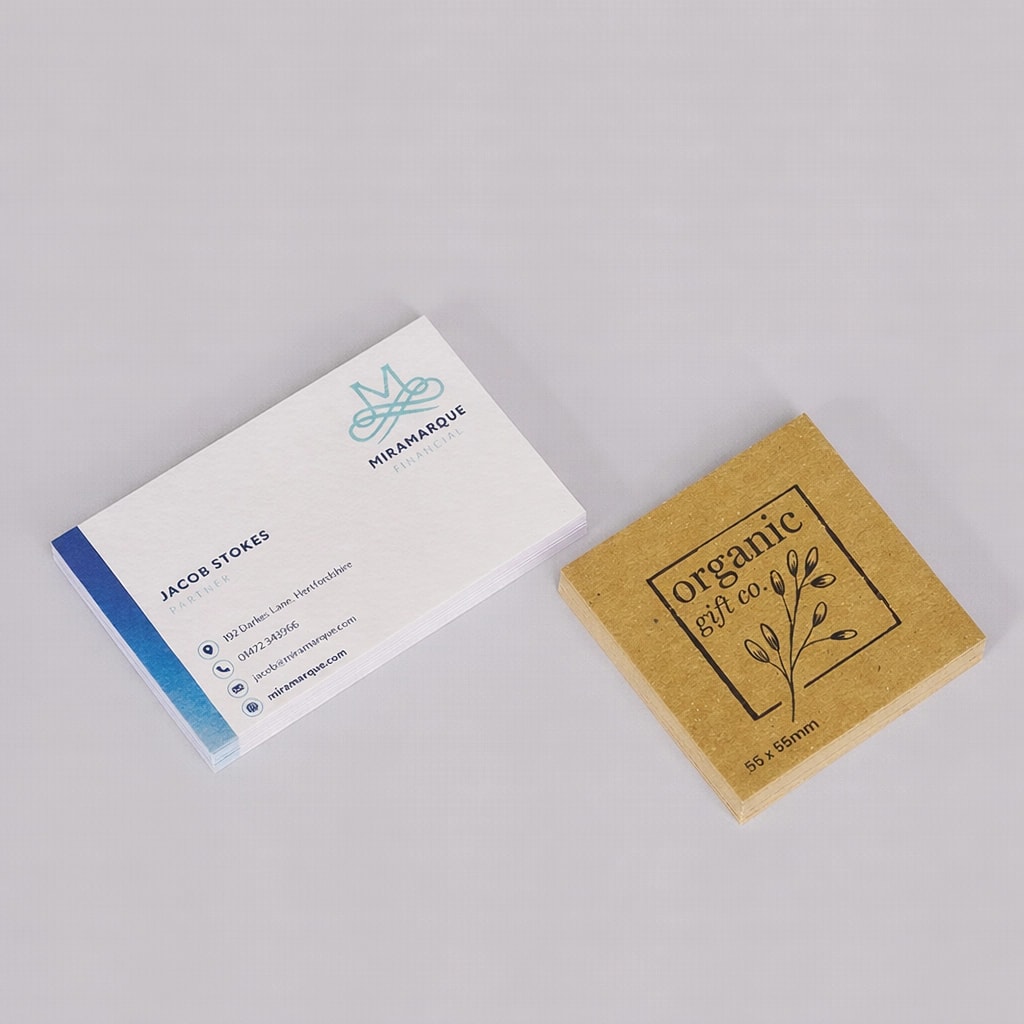
Shine bright with our Foil Business Cards, designed to leave a lasting impression infused with luxury. Boost your brand's appeal with stunning gold or silver foiling, ensuring your foiled business cards radiate elegance and refinement.
Our foil print business cards are crafted on 400gsm silk and finished with soft touch lamination, ensuring each card offers unmatched durability and tactile appeal. Indulge in the opulence of gold foil business cards or sophisticated silver foil business cards, and raise your design to new heights.
Whether you prefer single or double sided printing, or portrait or landscape orientation, each card is meticulously tailored to your specifications. Complete the aesthetic with optional round cornering, adding the final touch of finesse to your foil printed business cards.
Networking events, client presentations, brand promotions and more.
Top tip
To maximise the impact of your foil accents, ensure your design elements are strategically placed. Foil works best in high-contrast areas where it can catch the light and create a striking effect. Consider using foil on key details or highlights to draw attention and enhance your card's overall appeal.
Looking for other luxury networking solutions? Explore our wide range of business cards.
Design guidelines
To make artwork setup simple, download the relevant template from the Production templates section above. Follow the instructions provided and remember to remove the 'Guide' layer before exporting your artwork as a PDF.
For the best printing results, ensure your artwork and images are in CMYK. If you use RGB, Pantone or spot colours, these will be converted to CMYK during production, which may affect how your colours appear in print.
To avoid font issues, make sure all fonts are embedded or converted to outlines before exporting your PDF. For readability, we recommend using a minimum font size of 10pt.
For the best print quality, aim for images between 300dpi and 450dpi at their final print size. Lower resolutions may appear blurry or pixelated, while higher resolutions can increase file sizes. Check product template for any specific requirements.
To avoid alignment issues during cutting, include crop marks with a 10mm offset and document bleed when exporting your artwork as a PDF. Refer to the relevant product template for the required bleed specifications, as these vary by product.
All artwork must be supplied as a print ready PDF. We recommend exporting in Adobe PDF (Print) format, ideally using the PDF/X 1a:2001 standard.
Need more help preparing your artwork Explore our support guides for further guidance.
Designing with Canva
We offer free Canva templates for many of our products, complete with the correct dimensions, bleed and safe zones. Where available, you'll find the Canva template in the Production templates section above, ready to open and personalise.
Once your design is complete, download it as a PDF Print file and return to our website to place your order and upload your artwork. Remember to remove any guide layers before exporting.
Need help getting started? Read our Canva template guide or explore our wider collection of Canva templates for other products.
Canva uses RGB colour mode by default, which is designed for screens rather than print. For the best printing results, make sure you select CMYK when exporting your artwork. Converting from RGB to CMYK can cause slight colour shifts, so always check your exported PDF carefully before uploading to avoid unexpected results.
Need help with colours? Read our Canva colour guide.
Use fonts of at least 10pt to maintain legibility and keep important text within the safe zone. Use images at 300dpi or higher at their final size to avoid blurry or pixelated results.
Need help with image quality? Read our artwork resolution guide or watch our YouTube tutorial on how to export Canva designs for print.
Extend backgrounds, colours and images into the bleed area to avoid unwanted white edges after trimming. Keep important text, logos and design elements within the safe zone, and follow the bleed requirements for your chosen product.
Need help setting up bleed? Read our Canva bleed setup guide.
When exporting your finished design from Canva, select PDF Print and enable 'Crop Marks and Bleed'. This ensures your artwork includes the necessary bleed for printing. Remember to remove any template guides before downloading your file.
Need help exporting your artwork? Explore our Canva Hub for further guidance, or watch our tutorial below.
Understanding Scodix Foil
Add premium detail and eye-catching finishes to your artwork with digital foil enhancements. Watch our How to Elevate Your Print with Scodix Digital Foil video guide to discover how foil effects can make your print stand out.
Product description
Shine bright with our Foil Business Cards, designed to leave a lasting impression infused with luxury. Boost your brand's appeal with stunning gold or silver foiling, ensuring your foiled business cards radiate elegance and refinement.
Our foil print business cards are crafted on 400gsm silk and finished with soft touch lamination, ensuring each card offers unmatched durability and tactile appeal. Indulge in the opulence of gold foil business cards or sophisticated silver foil business cards, and raise your design to new heights.
Whether you prefer single or double sided printing, or portrait or landscape orientation, each card is meticulously tailored to your specifications. Complete the aesthetic with optional round cornering, adding the final touch of finesse to your foil printed business cards.
Networking events, client presentations, brand promotions and more.
Top tip
To maximise the impact of your foil accents, ensure your design elements are strategically placed. Foil works best in high-contrast areas where it can catch the light and create a striking effect. Consider using foil on key details or highlights to draw attention and enhance your card's overall appeal.
Looking for other luxury networking solutions? Explore our wide range of business cards.
Design guidelines
To make artwork setup simple, download the relevant template from the Production templates section above. Follow the instructions provided and remember to remove the 'Guide' layer before exporting your artwork as a PDF.
For the best printing results, ensure your artwork and images are in CMYK. If you use RGB, Pantone or spot colours, these will be converted to CMYK during production, which may affect how your colours appear in print.
To avoid font issues, make sure all fonts are embedded or converted to outlines before exporting your PDF. For readability, we recommend using a minimum font size of 10pt.
For the best print quality, aim for images between 300dpi and 450dpi at their final print size. Lower resolutions may appear blurry or pixelated, while higher resolutions can increase file sizes. Check product template for any specific requirements.
To avoid alignment issues during cutting, include crop marks with a 10mm offset and document bleed when exporting your artwork as a PDF. Refer to the relevant product template for the required bleed specifications, as these vary by product.
All artwork must be supplied as a print ready PDF. We recommend exporting in Adobe PDF (Print) format, ideally using the PDF/X 1a:2001 standard.
Need more help preparing your artwork Explore our support guides for further guidance.
Designing with Canva
We offer free Canva templates for many of our products, complete with the correct dimensions, bleed and safe zones. Where available, you'll find the Canva template in the Production templates section above, ready to open and personalise.
Once your design is complete, download it as a PDF Print file and return to our website to place your order and upload your artwork. Remember to remove any guide layers before exporting.
Need help getting started? Read our Canva template guide or explore our wider collection of Canva templates for other products.
Canva uses RGB colour mode by default, which is designed for screens rather than print. For the best printing results, make sure you select CMYK when exporting your artwork. Converting from RGB to CMYK can cause slight colour shifts, so always check your exported PDF carefully before uploading to avoid unexpected results.
Need help with colours? Read our Canva colour guide.
Use fonts of at least 10pt to maintain legibility and keep important text within the safe zone. Use images at 300dpi or higher at their final size to avoid blurry or pixelated results.
Need help with image quality? Read our artwork resolution guide or watch our YouTube tutorial on how to export Canva designs for print.
Extend backgrounds, colours and images into the bleed area to avoid unwanted white edges after trimming. Keep important text, logos and design elements within the safe zone, and follow the bleed requirements for your chosen product.
Need help setting up bleed? Read our Canva bleed setup guide.
When exporting your finished design from Canva, select PDF Print and enable 'Crop Marks and Bleed'. This ensures your artwork includes the necessary bleed for printing. Remember to remove any template guides before downloading your file.
Need help exporting your artwork? Explore our Canva Hub for further guidance, or watch our tutorial below.
Understanding Scodix Foil
Add premium detail and eye-catching finishes to your artwork with digital foil enhancements. Watch our How to Elevate Your Print with Scodix Digital Foil video guide to discover how foil effects can make your print stand out.
Silver and gold foiled business cards use the Scodix technology to apply a reflective gold or silver foil layer to chosen areas of the card, creating a vibrant, raised effect that catches the light and draws attention. This process enhances the design with a sophisticated finish, adding a touch of elegance and making the silk card stand out with both visual and tactile appeal.
Scodix is a digital enhancement technology that creates a raised finish on printed materials. The Scodix foiling technique applies a reflective foil layer to specific areas of a design, providing a vibrant and sophisticated look that catches the light and draws attention, thereby enhancing the overall appearance of the printed piece.
Gold: Offers a rich, opulent sheen that adds sophistication and warmth
Silver: Delivers a sleek, modern sparkle with a crisp, cool finish
To set up your foil file, start by creating a new spot colour swatch in your design software and name it "Gold" or "Silver" depending on your preferred finish. Duplicate all pages of your design, then apply the chosen spot colour to the elements where you want the foiling to appear. Ensure that any non-foiled elements are removed from these pages. Include a 2mm margin around the edges of your design to prevent cracking during trimming.
To supply your foil file, include both the print and foil elements in a single PDF file. For single-sided designs, create a 2-page PDF: the first page should contain the print design, and the second page should include the foil elements. For double-sided designs, use a 4-page PDF: pages 1 and 2 for the print design, and pages 3 or 4 for the foil elements, including a blank page where foiling is not present.
Due to the soft touch lamination, Scodix foil business cards are not recyclable. For accurate disposal information, it's advisable to consult your local guidelines on foil business cards.
Colour matching is not available on standard online orders. If your print requires a specific colour match, please submit a bespoke quote request, and our team will review your requirements.
The turnaround time for foil business card printing depends on your chosen product specification and finishing options. For faster delivery, we offer express production upgrades at an additional cost. To ensure your order is delivered on time, it is important we receive your artwork by the cut-off time indicated on both the product page and basket.
Please note: If your file is submitted after the cut-off time or if corrected artwork isn't provided before the next cut-off time following rejection, it will delay delivery by one working day.
We offer free standard delivery, with optional upgrades available for expedited service, including pre-10:30 AM and pre-12:00 PM for an additional cost.
Yes, we offer international delivery. Contact our Bespoke team for a shipping quote.
Yes, we can arrange split deliveries. Contact our Bespoke team to let us know how you'd like your order sent.
Uploading business card artwork is a breeze. After placing your order, click the upload button on the confirmation page. You can also upload your artwork through the Orders tab of "My Account".
Most orders are sent in boxes. For larger quantities, we may secure your order on a pallet (kerbside delivery). If your location doesn’t have tail-lift access, please contact us to discuss alternative delivery arrangement.
Silver and gold foiled business cards use the Scodix technology to apply a reflective gold or silver foil layer to chosen areas of the card, creating a vibrant, raised effect that catches the light and draws attention. This process enhances the design with a sophisticated finish, adding a touch of elegance and making the silk card stand out with both visual and tactile appeal.
Scodix is a digital enhancement technology that creates a raised finish on printed materials. The Scodix foiling technique applies a reflective foil layer to specific areas of a design, providing a vibrant and sophisticated look that catches the light and draws attention, thereby enhancing the overall appearance of the printed piece.
Gold: Offers a rich, opulent sheen that adds sophistication and warmth
Silver: Delivers a sleek, modern sparkle with a crisp, cool finish
To set up your foil file, start by creating a new spot colour swatch in your design software and name it "Gold" or "Silver" depending on your preferred finish. Duplicate all pages of your design, then apply the chosen spot colour to the elements where you want the foiling to appear. Ensure that any non-foiled elements are removed from these pages. Include a 2mm margin around the edges of your design to prevent cracking during trimming.
To supply your foil file, include both the print and foil elements in a single PDF file. For single-sided designs, create a 2-page PDF: the first page should contain the print design, and the second page should include the foil elements. For double-sided designs, use a 4-page PDF: pages 1 and 2 for the print design, and pages 3 or 4 for the foil elements, including a blank page where foiling is not present.
Due to the soft touch lamination, Scodix foil business cards are not recyclable. For accurate disposal information, it's advisable to consult your local guidelines on foil business cards.
Colour matching is not available on standard online orders. If your print requires a specific colour match, please submit a bespoke quote request, and our team will review your requirements.
The turnaround time for foil business card printing depends on your chosen product specification and finishing options. For faster delivery, we offer express production upgrades at an additional cost. To ensure your order is delivered on time, it is important we receive your artwork by the cut-off time indicated on both the product page and basket.
Please note: If your file is submitted after the cut-off time or if corrected artwork isn't provided before the next cut-off time following rejection, it will delay delivery by one working day.
We offer free standard delivery, with optional upgrades available for expedited service, including pre-10:30 AM and pre-12:00 PM for an additional cost.
Yes, we offer international delivery. Contact our Bespoke team for a shipping quote.
Yes, we can arrange split deliveries. Contact our Bespoke team to let us know how you'd like your order sent.
Uploading business card artwork is a breeze. After placing your order, click the upload button on the confirmation page. You can also upload your artwork through the Orders tab of "My Account".
Most orders are sent in boxes. For larger quantities, we may secure your order on a pallet (kerbside delivery). If your location doesn’t have tail-lift access, please contact us to discuss alternative delivery arrangement.