Prices
Don't let your hard work get lost in translation from screen to paper. Use this Canva print checklist to prepare your artwork before uploading it to WTTB.
Check your file size, bleed, safe area, image quality, colour setup and PDF Print export settings, so your finished print looks as sharp as your design.
Creating professional quality prints from your Canva designs is easy when you know the right steps. This guide covers everything you need to prepare, export and order print ready artwork that looks great every time.
Avoid common issues like low resolution images, missing bleed and colour shifts that can affect your final print results.
Use this checklist before you download your Canva design, upload your artwork or place your print order. It is designed for first time Canva users, small businesses, Etsy sellers, creators and anyone preparing Canva artwork for professional print. Check out our dedicated hub for more information on all things Canva.
We're a UK based print company trusted by thousands of creators, Etsy shops and small businesses nationwide. At WTTB, our mission is to make it simple for you to turn designs into stunning products with expert support, fast delivery and white label delivery options.
This Canva print checklist covers the key steps needed to prepare Canva artwork for professional printing. It explains how to set up your file size, add bleed, use safe areas, check image resolution, manage colour expectations, export as PDF Print and upload your finished artwork to WTTB.
It is designed to help reduce common print issues before they happen, including blurry images, missing bleed, white edges, unexpected colour shifts, incorrect file types and text that sits too close to the trim edge.
Use this checklist before exporting your final Canva file. It can help you catch the most common artwork issues before your design goes into production.
Before you upload your file, tick these off for the best print results:
☐ Locate your dedicated Canva product template
☐ File size matches your chosen product dimensions
☐ 3mm bleed added on all sides
☐ Important text and logos kept inside the safe zone
☐ Images are 300 DPI or higher
☐ Colours checked before CMYK conversion
☐ Crop marks enabled
☐ Canva fonts embedded correctly
☐ Exported as PDF Print
☐ Open your PDF and check it at 200% zoom before uploading
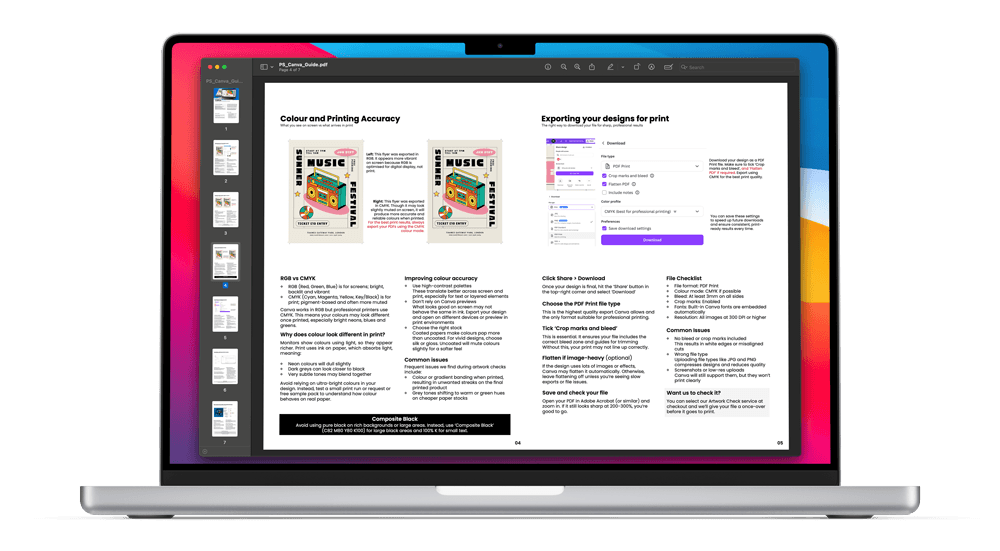
When exporting from Canva for professional print, use PDF Print and enable crop marks and bleed. This helps preserve artwork quality, include trim guides and prepare your file for production.
Setting | Recommended option | Why it matters |
|---|---|---|
File format | Keeps artwork sharp and suitable for professional print | |
Bleed | 3mm on all sides | Helps avoid unwanted white edges |
Crop marks | Enabled | Shows where the design should be trimmed |
Image resolution | 300 DPI minimum | High quality images helps avoid blurry or pixelated print |
Colour | CMYK friendly colours | CMYK conversion will be handled automatically, so by using CMYK-friendly colours, it helps reduced unexpected colour shifts |
Preparing your Canva design for professional printing? Get it right from the start. From choosing the correct finished size and applying bleed to using high-resolution imagery, fonts, and crop marks, setting up your file correctly ensures sharp, print-ready results every time.
This section covers the essential setup steps to help you avoid common print issues and create designs that look just as good in hand as they do on screen.
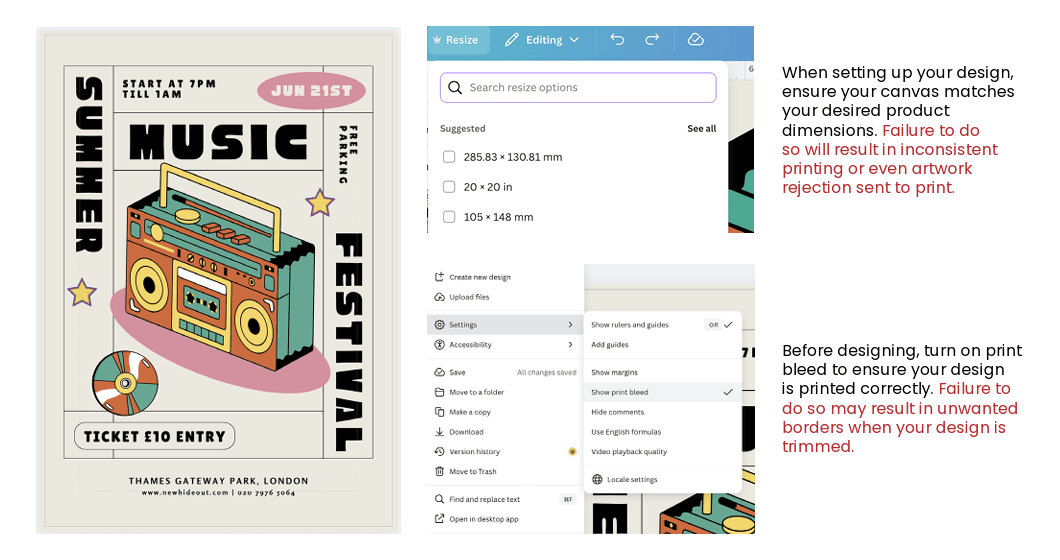
Your design's finished size is the final trim dimensions; it's what you'll hold in your hands after printing. In Canva, you should set your canvas to match your chosen product's size from the start.
For instance, if you're creating an A5 flyer, set your dimensions to 148 x 210mm. This ensures nothing is resized or cropped unexpectedly during production.
Looking for something bespoke? WTTB also offers custom sizes on select products. Get in touch with our Bespoke team to discuss the possibilities.
The safe area is your design's buffer zone. It's a 5mm space inside the trim edge where all vital content, like headlines, logos and key imagery, should sit. Why? During trimming, even the most precise machinery can shift by a fraction.
Keeping content within this zone ensures your message stays sharp, centred and uncut.
Bleed ensures your design goes right to the edge of the page, without unsightly white borders. In Canva, this means extending any backgrounds, colours or images 3mm beyond the finished size on all sides.
This overflow is trimmed away, but it guarantees a clean, professional result. To enable bleed in Canva, head to File > Settings and tick Show Print Bleed. Then, simply drag your elements past the guides.
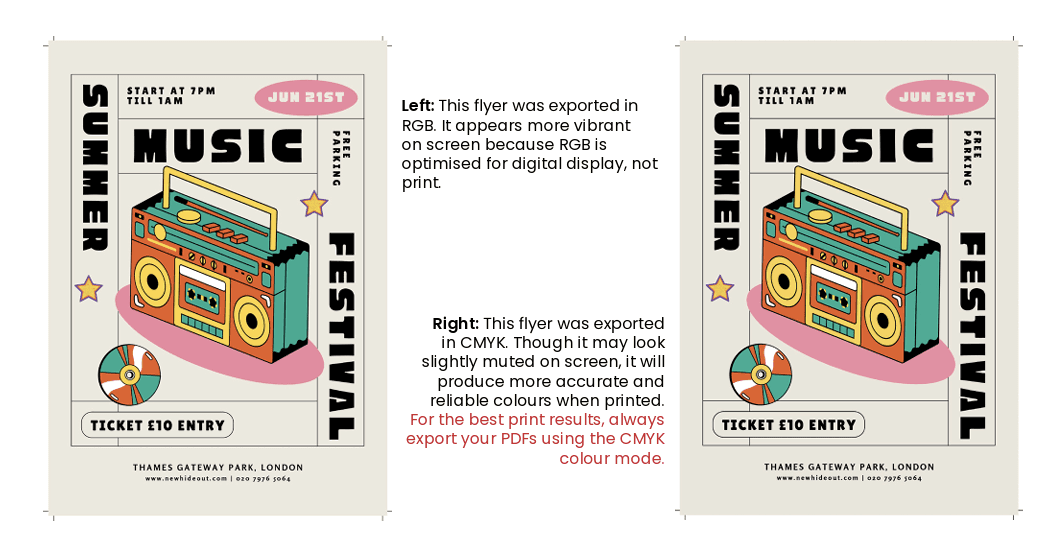
While Canva works in RGB (perfect for screens), professional printing requires CMYK, which is a different colour profile entirely. WTTB automatically converts your files for print, but certain hues (especially neon and bright colours) can shift slightly in the process.
For more accurate results, stick to print-friendly colour palettes and preview how your design might appear once converted. Staying within the CMYK-safe range keeps things looking polished and consistent.
Typography can make or break a design. For best results, use Canva's built-in fonts or upload high-quality custom typefaces. Avoid low-res or rasterised text, as it can appear fuzzy or unclear in print.
Keep your font sizes readable and consistent across the design, especially for small-format items like business cards or stickers. Clear fonts help your message stand out and print beautifully.
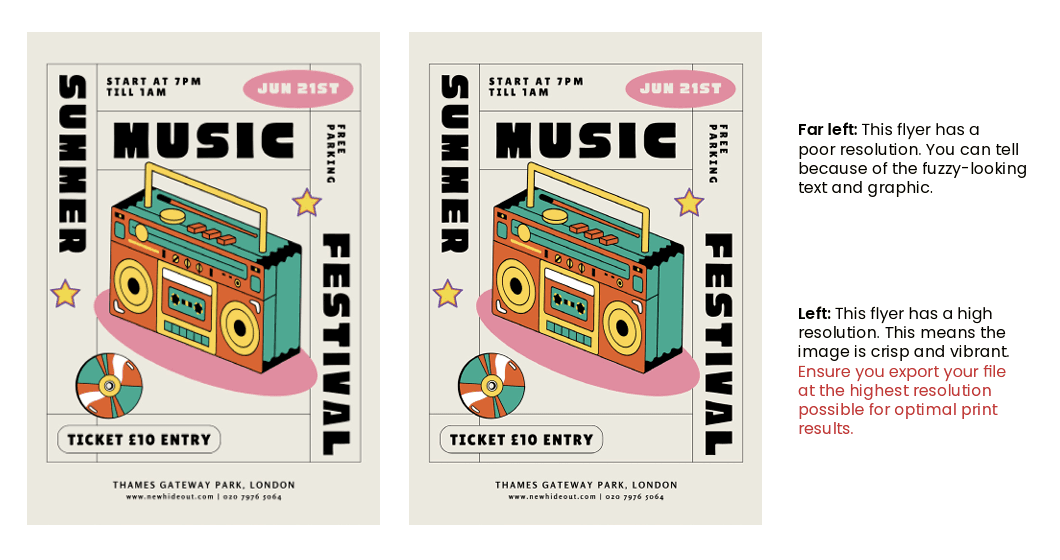
When it comes to images, clarity is key. All photos and graphics in your Canva file should be at 300 DPI or higher to ensure crisp, detailed print results. Web images, while fine for on-screen use, are often low resolution and can appear blurry or pixelated once printed.
If you're unsure, zoom in on your design in Canva. If it looks grainy, it probably needs replacing.
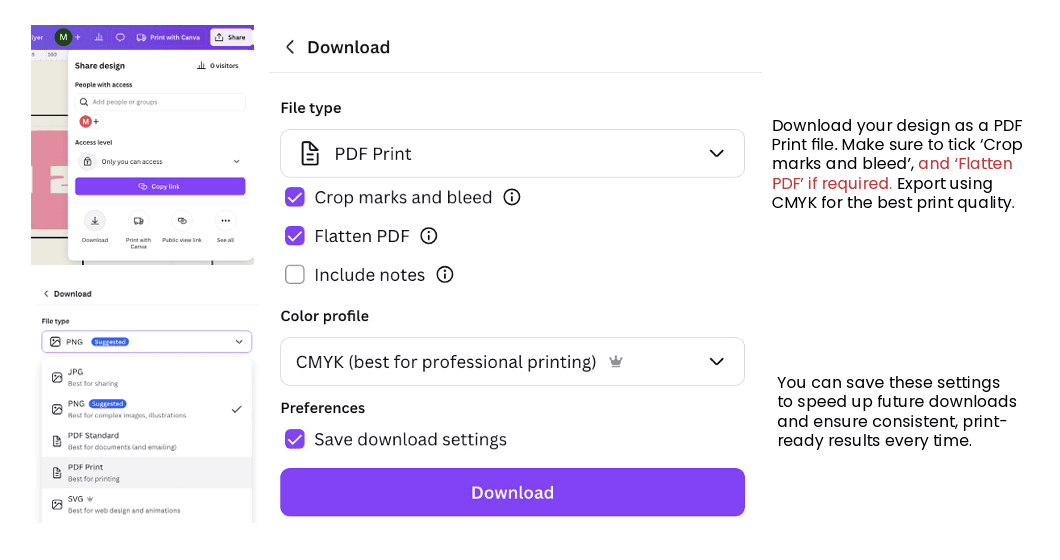
When downloading your design from Canva, always choose PDF Print as the format and tick the box for 'Crop marks and bleed'. Crop marks tell the printer exactly where to trim, while the bleed area ensures edge-to-edge printing without any gaps. It's a small step that ensures your design translates perfectly from screen to page.
For more information, check out our guide on setting up bleed in Canva.
To get professional-quality from Canva, export your final design as a PDF Print file. This format locks in your layout, image resolution and font clarity, so that everything prints just as you've designed it. It's the industry standard for a reason: it delivers clean, consistent results across all print products.
Before exporting your Canva design, zoom in and check that photos, logos and graphics still look sharp. Avoid screenshots, small web images and images stretched beyond their original size. For professional print, use high resolution images and keep important text as live Canva text wherever possible.
DPI stands for Dots Per Inch, and it's a key indicator of how sharp and detailed your images will be once printed. The higher the DPI, the crisper the final result.
For professional print, 300 DPI is the gold standard for delivering sharp lines, smooth gradients and clean visuals. By contrast, 72 DPI is optimised for screens and often appears pixelated or blurry when printed.
Unlike traditional design tools, Canva doesn't show DPI values within the platform. It optimises images for screen use, which can be misleading. A photo that looks perfectly sharp on your monitor might print soft or grainy.
To check image quality in Canva, zoom in to at least 200%. If the image appears blurry or lacks detail at that zoom level, it will likely print that way too. Start with the highest-resolution images possible, especially if your design features large visuals or full-bleed backgrounds.
For best results, use images that are at least 2500 pixels wide for A5 designs or larger formats. For more information, check out our guide on DPI in Canva.
Small JPGs or PNGs often look fine on screen but degrade significantly in print. Always use the highest-resolution versions available. Avoid images pulled from Google or social media, and never rely on screenshots.
Overstretching images beyond their original size will cause pixelation. If you need a full-page background, don't stretch a small image. Instead, use a properly sized asset or a high-resolution alternative. In Canva, you can right click and select Set Image as Background to anchor your image correctly.
Designs with large, full-bleed backgrounds demand high-resolution imagery. If you're using Canva's built-in image library, opt for Canva Pro assets where possible, as these tend to offer higher quality files better suited for print.
Avoid placing key text inside images. Instead, use Canva's text tool for sharper results. Live text will always render cleaner than flattened image text in a print file.
Where you can, use vector files like SVGs or Canva's built-in icons. Unlike raster images, vectors can be scaled to any size without losing quality; ideal for logos, icons and illustrations that need to remain razor-sharp at any size.
If your design is image-heavy or contains many layered elements, you may consider enabling Flatten PDF when exporting. This reduces file size and flattens the artwork into one printable layer. However, for text-based designs or anything requiring pin-sharp type, it is best to leave this unticked to preserve clarity.
One of the most common surprises in printing is that the colours on your screen don't always match the colours on your printed products. That is because digital design and print production speak two different colour languages: RGB and CMYK.
Important: Canva is designed for screen based design, so colours may not appear exactly the same when printed. This does not mean the file is wrong. It means the design is moving from RGB screen colour to CMYK print production.
RGB (Red, Green, Blue) is a light-based colour system used for screens. It is vibrant, high-contrast and ideal for digital media like websites, presentations and social content.
CMYK (Cyan, Magenta, Yellow, Black) is a pigment-based system used by printers. It mixes physical inks on paper, which naturally appear more muted than their on-screen equivalents.
Canva designs are created in RGB, but all WTTB print files are converted to CMYK during production. This means that colours, particularly bright blues, neons, greens and intense gradients, may appear differently when printed. This isn't an error, it is a shift in how colour is translated from screen to paper. Check out our guide on understanding colour profiles in Canva.
Screens display colours using light, making them appear sharper and more vibrant. Printers, on the other hand, use ink, which absorbs light rather than emits it. This shift results in a few typical changes:
To manage expectations, we always recommend avoiding reliance on overly bright digital colours, especially if exact colour fidelity is crucial. Want to see how your colours behave in real life? Request a free sample pack or order a short run first.
Use high-contrast palettes: These translate better from screen to paper, especially when layering elements or using text on coloured backgrounds. Strong contrast improves clarity in both formats.
Don't trust screen previews alone: Canva doesn't offer CMYK previews, so what looks bold online may not hold up in print. Export your design and view it on multiple devices, or better still, run a physical test print.
Choose the right paper stock: The paper you print on affects how colour appears. Gloss and silk coated papers enhance vibrancy and contrast, making them perfect for bold visuals. Uncoated papers create a softer, more natural finish that works well for minimal or muted designs. For a full breakdown of the paper stocks and print materials available at WTTB, explore our comprehensive guide here.
During artwork checks, we regularly see a few recurring issues that affect print quality:
Being aware of these risk allows you to design smarter and print with confidence.
Avoid using pure black (100% K) for large areas or dark backgrounds, as it can look washed out or uneven. Instead, use Composite Black (C82, M80, Y80, K100), a rich black that appears deep and consistent when printed.
For small text or fine lines, 100% K is still the way to go. This ensures sharp, readable typography without the risk of ink bleed or misregistering.
Once your design is polished and ready to go, exporting it properly is the final (and most important) step to getting a flawless print result. Canva makes the process simple, but there are a few crucial settings you need to get right to ensure your file prints exactly as intended.
Click Share in the top-right corner of the Canva editor, then select Download. This opens up your export options.
Under File Type, choose PDF Print. This is the highest-resolution export Canva offers, and the only one suitable for professional printing. Avoid formats like PNG or JPG, which are compressed and can reduce image quality significantly.
Next, make sure to tick the box for Crop marks and bleed. This ensures your file includes trim guides and the full bleed area, which is critical for achieving a clean edge-to-edge print. Without this, you risk white borders or uneven cutting.
If your design is heavy on images, textures or effects, Canva may automatically flatten the file during export to simplify layers. In general, we recommend leaving the flatten option off unless your file is taking too long to download or you are seeing export glitches. For crisp text and cleaner layering, a non-flattened PDF is typically best.
Once exported, open your file using a PDF viewer like Adobe Acrobat and zoom in to 200-300%. If your images and text still appear sharp and clear, your file is print ready. This quick check helps catch any pixelation, compression or font issues before you hit Order.
Want peace of mind before you send your design to print? Select our Artwork Check service at checkout. Our print experts will review your file and make sure everything is in order, from bleed to resolution, so you can print with confidence.
Once your design is ready to go, the final steps, like uploading, ordering and confirming your file, are just as important as the creative work. Follow this simple workflow to ensure your print job runs smoothly from checkout to delivery.
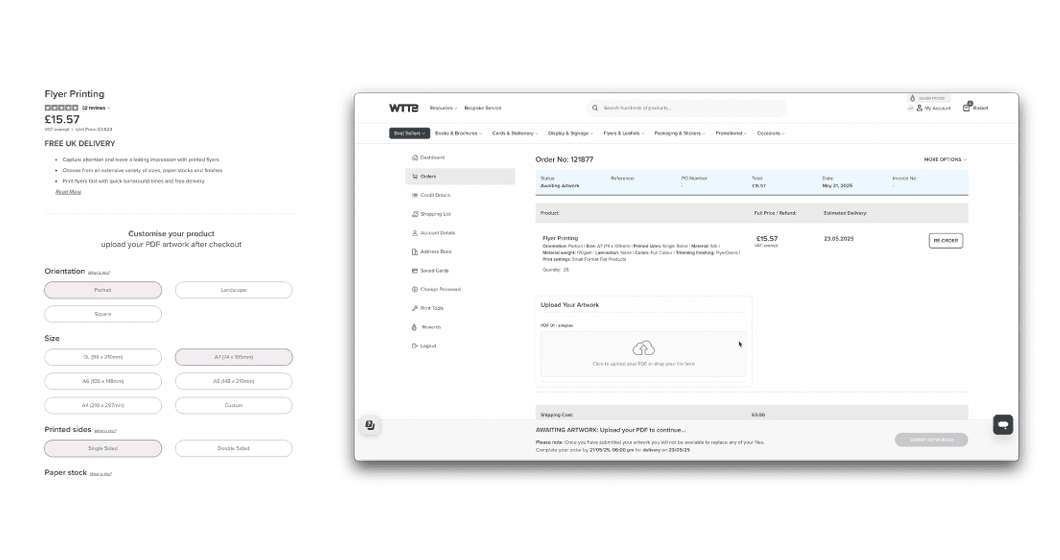
Start by selecting your product on the WTTB site, including the size, orientation, paper stock and finish. Getting these details right upfront ensures your artwork aligns perfectly with the final product and avoids any surprises at the proofing stage.
After selecting your print options, complete your payment to confirm your order. This locks in your chosen specs, allocates production resources and prepares our system to receive your artwork.
Once your payment has been processed, you'll be prompted to upload your print-ready PDF file, whether created in Canva or another design platform. Make sure your file has been exported using PDF Print format with crop marks and bleed included.
Need help setting up your file? Our downloadable templates (available in PDF and InDesign formats) are designed to fit our products perfectly, helping you avoid errors and save time.
Before uploading your artwork, take a moment to double-check the following:
Using our pre-made templates is a great way to speed up approval and avoid production delays.
If you are unsure whether your Canva file is ready, choose an artwork check during checkout. This gives your file an additional technical review before production and can help identify issues with bleed, resolution, trim area or file setup.
Once your artwork is uploaded:
Whether you're unsure which paper stock to choose or need assistance uploading your Canva designs, our UK-based print experts are ready to support you.
Selling your products online? Whether you're an Etsy seller, boutique brand or side-hustle superstar, nailing your print setup is essential. These bonus tips are tailored to help small businesses get professional results, avoid costly mistakes and make the most of their print partner. These tips are also useful for creators selling through eBay, Not on the High Street, social media shops or their own website.
Begin by setting your Canva file to match the exact size of the product you're printing. This prevents any distortion, misalignment or resizing headaches during production, which are especially important for packaging, cards and promotional inserts. Measure twice, design once.
Add 3mm bleed around all edges of your design and keep critical content, like logos, contact details or decorative borders, at least 5mm inside the edge. These margins protect your work during trimming and help your prints look polished and professional.
Canva designs in RGB, but your prints are produced in CMYK. For brand consistency, especially if you're using specific colours for your packaging or marketing, export and preview your file in CMYK. This helps avoid surprises and keeps your visual identity on point.
Before committing to a larger print run, request a free sample pack from WTTB. You'll get to see and feel different paper stocks, weights and finishes. It is a small step that can make a huge difference in how your product is perceived.
For smooth production and professional results, your files should always be:
These steps ensure your print job flows seamlessly without delay or quality loss.
Avoid last-minute scrambles by printing in realistic batches based on quarterly sales. With WTTB, you're not locked into high minimum orders. Our flexible quantities and sitewide discounts help you order smart, reduce waste and scale as you grow.
We know what it's like to wear many hats. Here's how we make print simple and scalable for creators and small brands:
Need some guidance? We're here to help. Explore our FAQs to find answers to questions about using Canva to the best of your ability with Where The Trade Buys (WTTB).
What is a Canva print ready checklist?
A Canva print ready checklist is a set of final artwork checks to complete before sending your design to print. It helps you check size, bleed, safe area, image quality, colour setup, file type and export settings before uploading your artwork.
How do I make a Canva file print ready?
Start with the correct product size, add 3mm bleed, keep important text inside the safe area, use high quality images and export the finished design as a PDF Print file with crop marks and bleed enabled.
Can Canva templates be used for professional printing?
Yes. Canva templates can work well for professional printing when they are set up correctly. Before exporting your design, make sure the template dimensions match your chosen product size, bleed has been added where needed and all images are high resolution.
Exporting your design as a PDF Print file with crop marks enabled will help ensure your Canva artwork is fully print ready for professional printing.
What file type should I export from Canva for printing?
For professional print quality, export your Canva design as a PDF Print file. This format keeps your artwork sharp, preserves image quality and embeds fonts correctly for commercial printing. Before downloading your file, enable crop marks and bleed and choose the highest quality export settings available in Canva.
Using PDF Print helps ensure your artwork is fully print ready for products like flyers, posters, business cards and leaflets.
What is bleed in printing and do I need it in Canva?
Yes. Bleed is essential when preparing Canva files for print. Bleed is the extra 3mm area around the edge of your design that allows artwork to be trimmed accurately without leaving unwanted white borders.
To avoid trimming issues, extend backgrounds and images beyond the page edge and keep important text and logos safely inside the design margins. Bleed is especially important for edge to edge print products such as business cards, flyers, leaflets and posters.
What resolution should Canva images be for printing?
For high quality printing, images should be at least 300 DPI at their final print size. Using high resolution images helps keep printed artwork sharp, clear and professional looking.
Low resolution images can appear blurry or pixellated when printed, especially on larger products. To achieve the best results, avoid enlarging low resolution images beyond their original size and always check image quality before exporting your Canva file.
Do I need to use a Canva template before printing?
You do not have to use a template, but it can help you start with the correct size and format. WTTB Canva templates are especially useful if you are creating artwork for a specific printed product.
Why do Canva colours look different when printed?
Canva designs are created in RGB colour mode, while professional printing uses CMYK inks. Because screens and printers reproduce colour differently, printed colours can sometimes appear slightly duller or darker than they look on screen.
To improve colour accuracy, avoid overly bright neon colours and be cautious with dark greys and rich blacks. Designing with print in mind from the start can help produce more consistent and professional print results.
What happens if I upload a Canva file that is not print ready?
If your Canva file is not set up correctly, it can lead to issues such as incorrect trimming, poor image quality or colour differences in the final print. For the best results, use one of our dedicated Canva templates or watch our step by step guide on how to set up your Canva files properly.
If you are still unsure whether your artwork is print ready, our artwork technical checks at checkout can help identify potential issues before printing and ensure your artwork is fully prepared for professional printing.
What are the best Canva export settings for WTTB?
For WTTB print orders, export your Canva design as a PDF Print file with crop marks and bleed enabled. Use high quality images and check your exported PDF before uploading it to your order.
Can WTTB check my Canva artwork before printing?
Yes. If you are unsure whether your file is ready, you can add an artwork technical check during checkout. This gives your file an additional review before production.