Prices
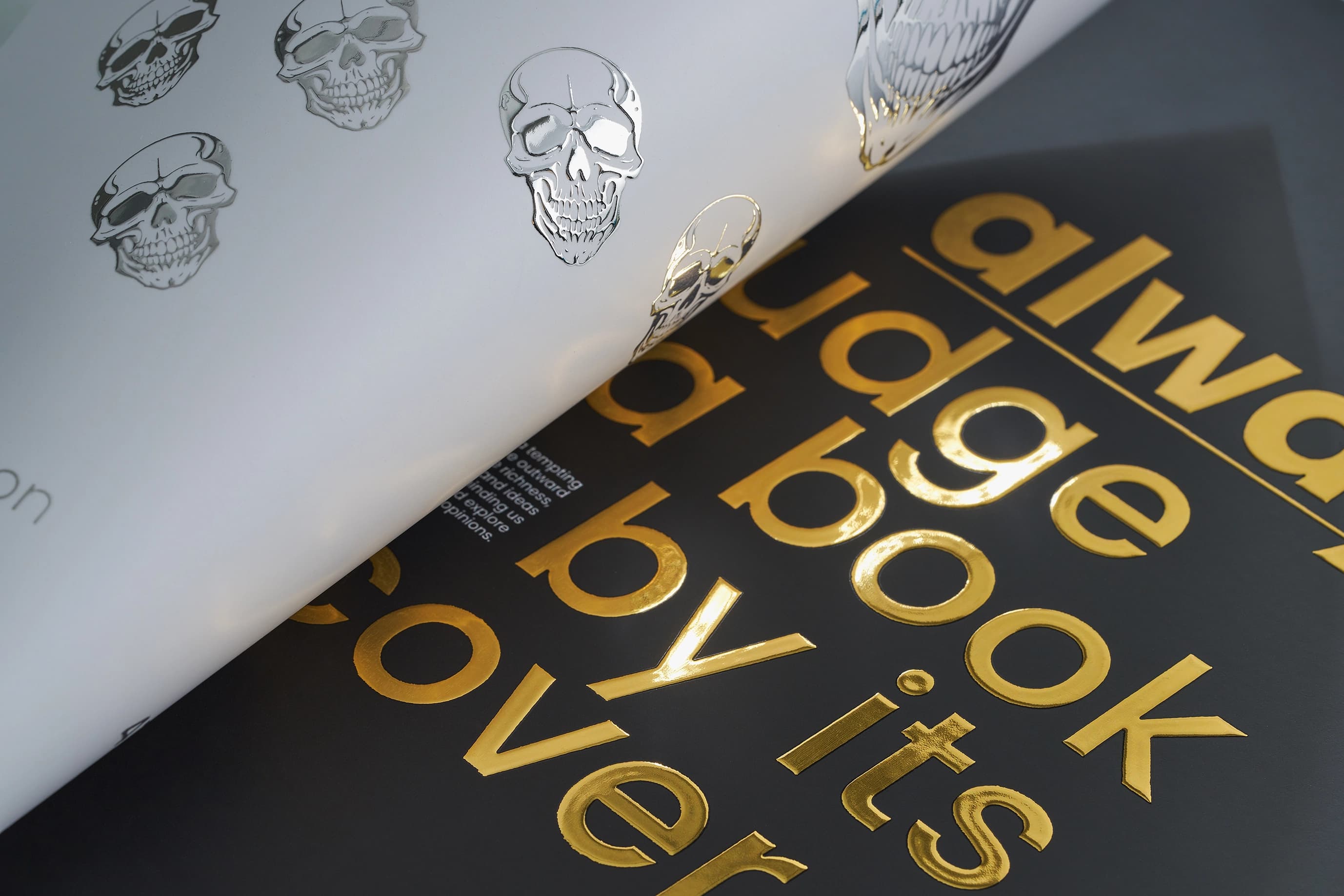
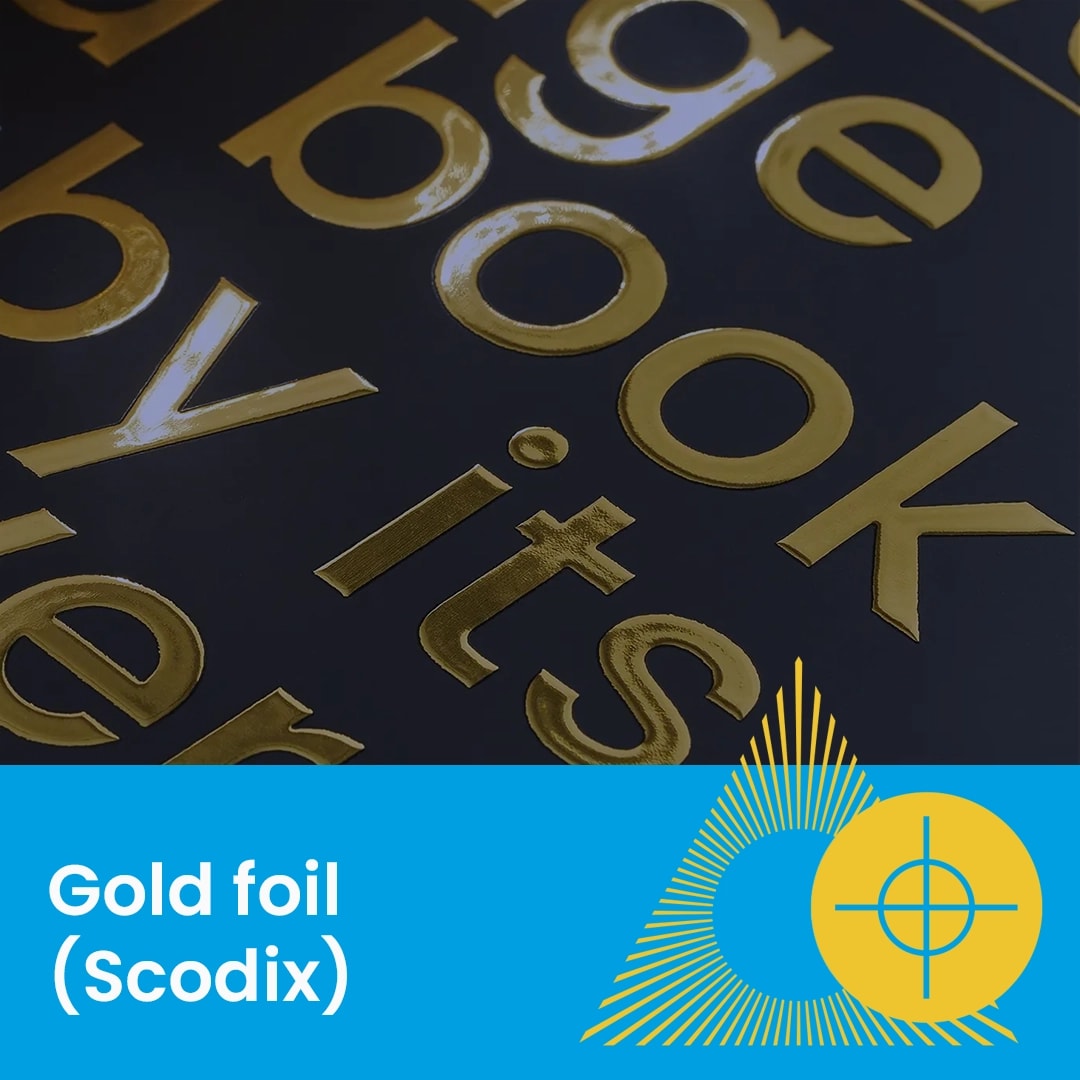
Silver Foil (also known as Scodix Foil) adds a premium, raised tactile finish to your foil business cards and other print. Because this is a secondary process, your artwork must be supplied with a specific "Foil Layer" to ensure the finish aligns perfectly with your design.
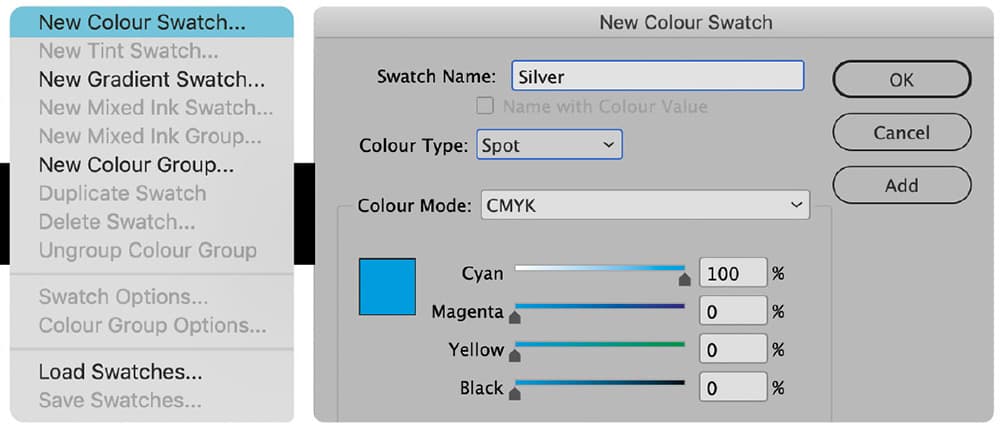
Our digital foiling system identifies which elements to foil by looking for a specific swatch name.
Swatch Name: You must create a new colour swatch and label it exactly as Silver (case sensitive).
Colour Type: Set the swatch to Spot Colour.
Visual ID: We recommend setting the colour to 100% Cyan so you can easily identify foil elements against your CMYK artwork.
Your final PDF must contain both the printed CMYK elements and the foil elements in a single file, arranged in a specific order. The illustration below shows an example of a double sided business card setup.
Page 1 (Front): Your standard CMYK printed artwork.
Page 2 (Back): The reverse of your card (if applicable).
Page 3 (Foil): Only the elements you want foiled, coloured in your "Silver" spot colour. Note: Ensure all foil areas are removed from the printed CMYK pages to avoid registration ghosting.
Page 4 (Blank): A blank page to maintain correct document backed-up order.
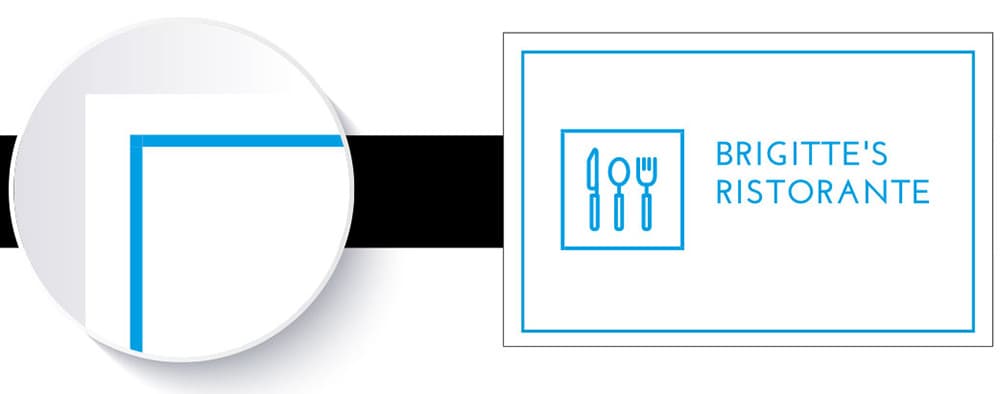
To ensure the foil adheres correctly and does not crack during finishing, please adhere to these safety margins.
Edge Clearance: Leave a 2mm clear area around the edge of the design and any fold areas. This prevents the foil from cracking when the product is cut by the guillotine.
Typography: Avoid using script or highly detailed fonts for foil.
Minimum Size: Keep text above 10pt to prevent the foil from "bleeding" or filling in the gaps within the lettering.
Need more help? Explore our additional support guides for expert advice on artwork setup, print file preparation, bleed and crop marks, colour setup, large format artwork and troubleshooting common print file issues.
Our support guides also cover paper stock selection, premium print finishes including spot UV and Scodix, preparing print-ready artwork and understanding the best setup for a wide range of printed products.
Before ordering, you can also use our artwork technical check tool to identify common artwork problems, including low resolution images, missing bleed, incorrect dimensions and RGB colour profiles.
You can also browse our full range of print products, including banners, business cards, flyers, posters and large format printing solutions.
Discover premium silver foil business cards with metallic foil finishes designed to add contrast, detail and a high-end finish to your print.