Prices
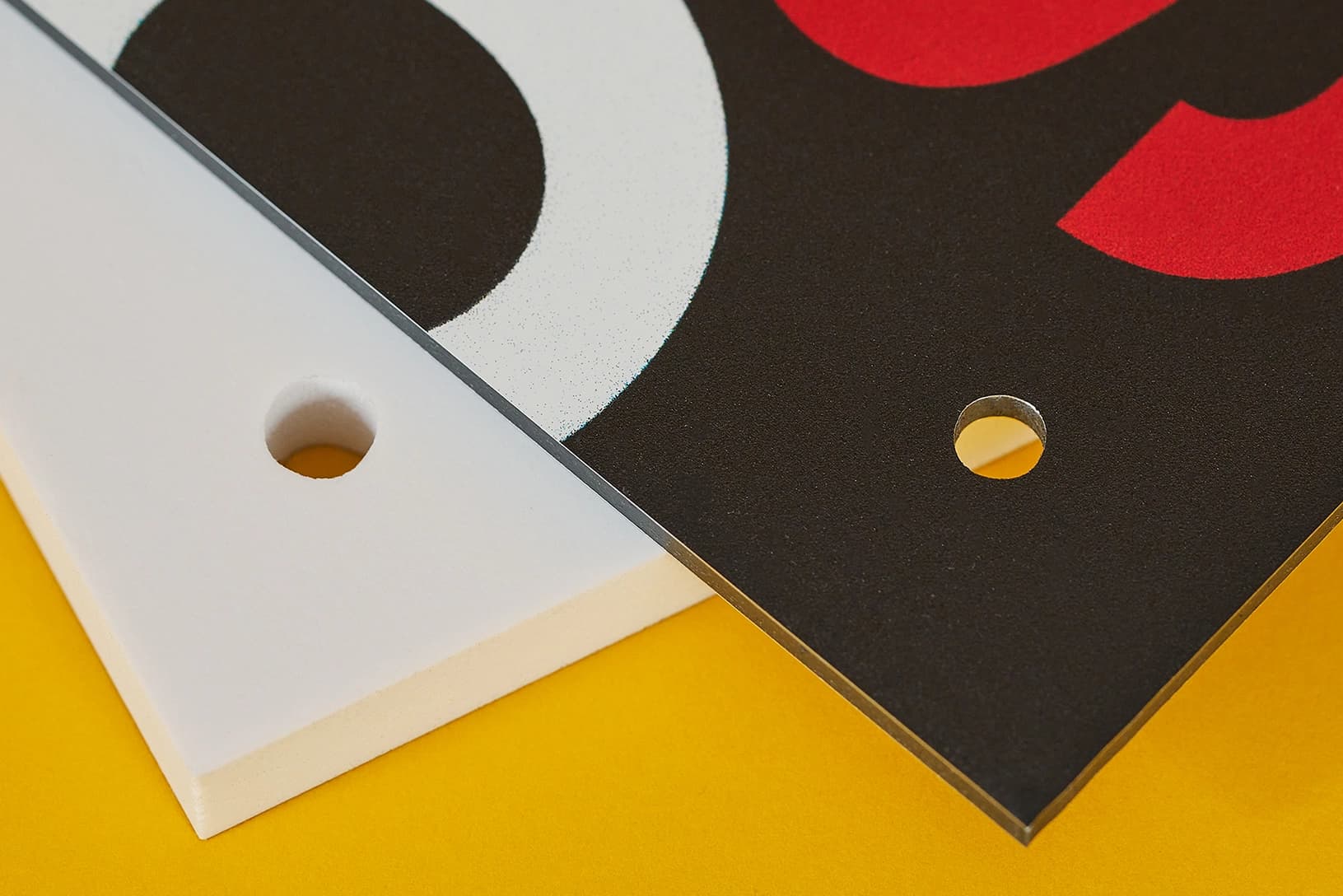
Drill holes are a professional finishing option that allows your display materials to be easily hung or fixed to surfaces. To ensure your text and images are not lost during the drilling process, please follow these technical specifications.
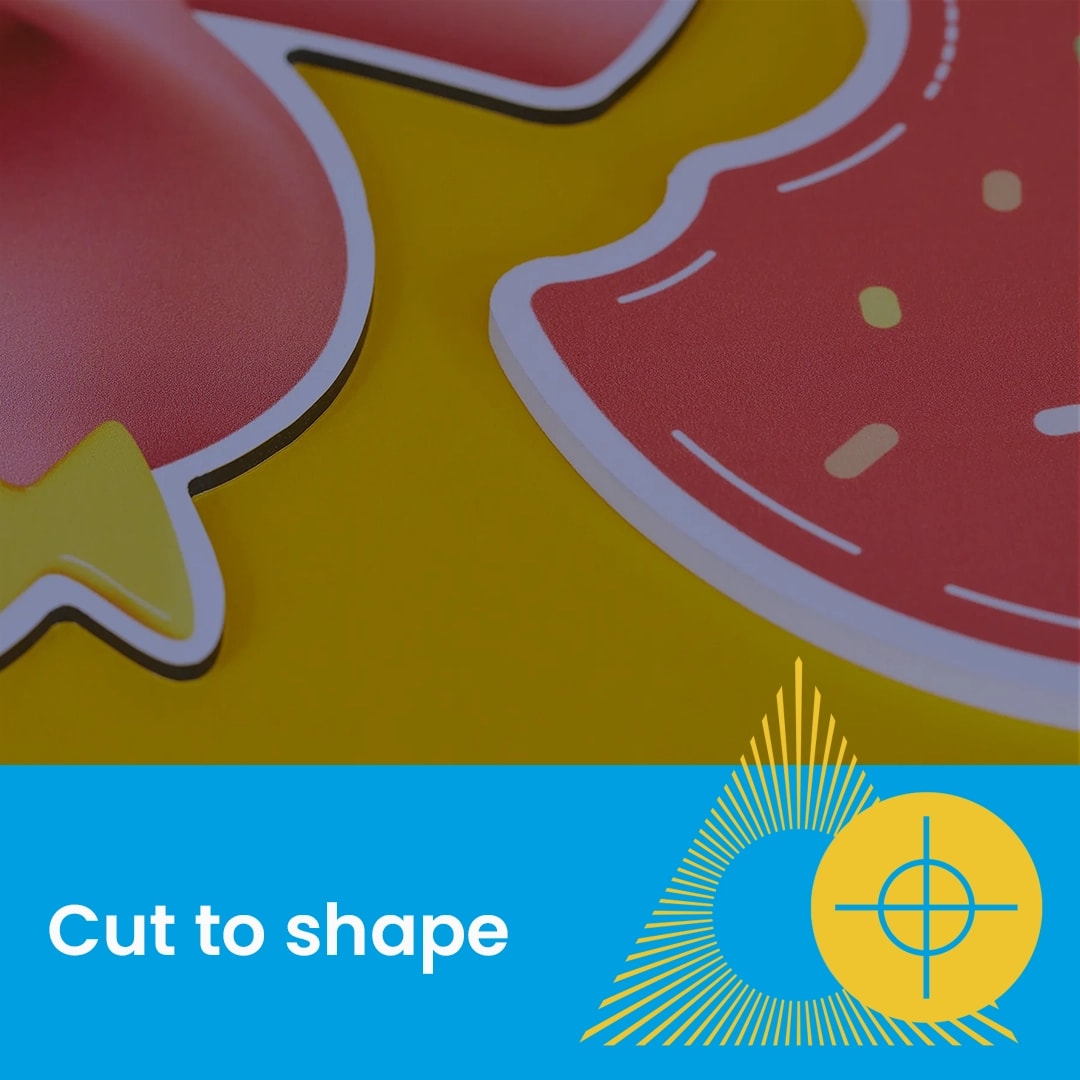
Drill holes are automatically placed on your artwork by our system so they do not need to be placed on your artwork UNLESS you'd prefer a different drill hole size or position. If a different hole position is required please select our ‘cut to shape’ option and mark the desired drill holes on your artwork using a spot colour labelled CUT.
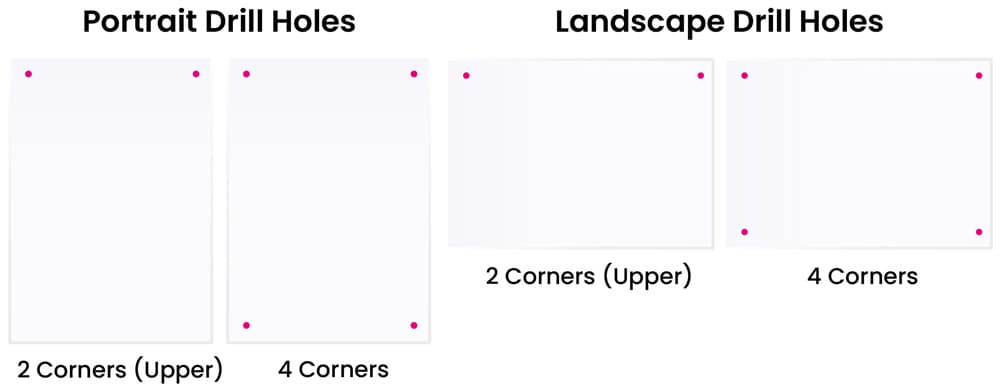
You can choose between two standard configurations for your boards:
2 Corners (Upper): Holes are applied only to the top two corners of the board.
4 Corners: Holes are applied to all four corners for a more secure fixing.
Precision is vital to prevent important information, such as phone numbers or web addresses, from being cut out.
Hole Size: A 5mm hole will be applied to the product.
Positioning: Holes are positioned 18mm from the edge of the board to the centre of the hole.
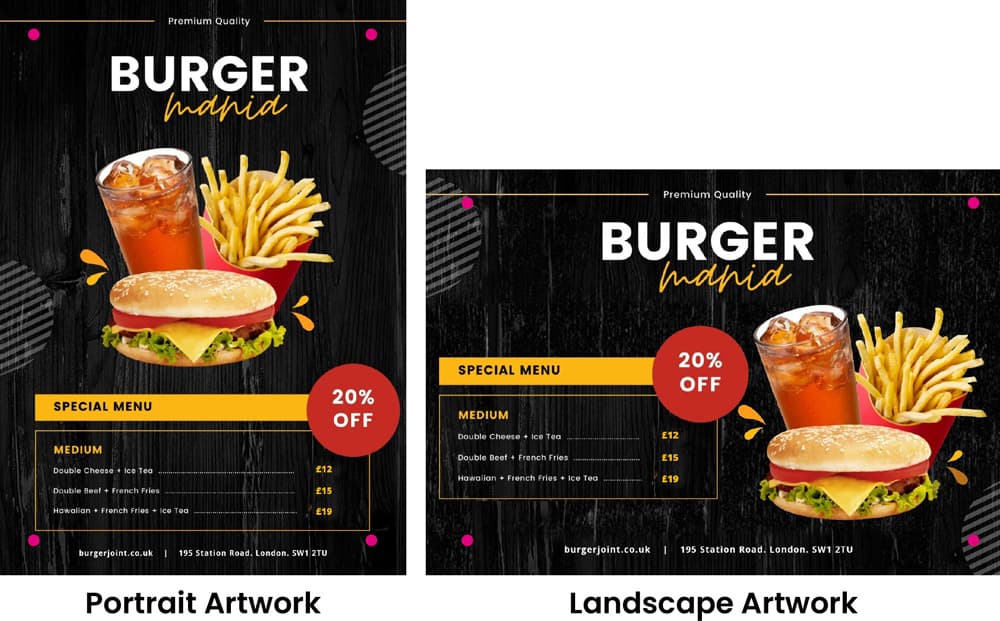
Safe Area: Ensure all critical text and logos are kept well away from these areas to maintain full visibility.
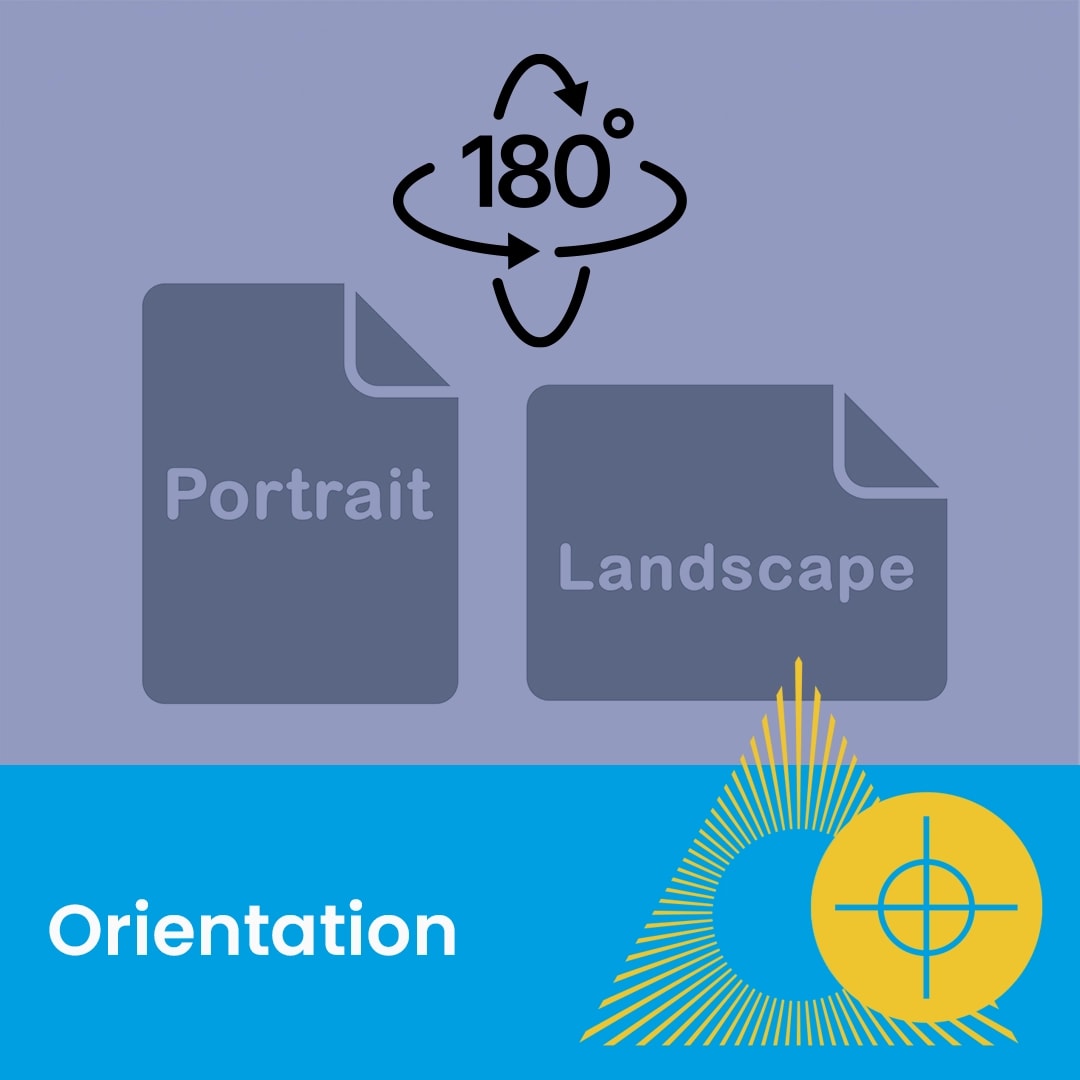
When supplying your files, the orientation must be correct to ensure the holes are placed in the intended location.
2 Corners (Upper): Ensure your design is supplied the correct way up so the holes align with the top edge of your layout, whether in landscape or portrait.
4 Corners: For four-corner drilling, ensure your artwork is centred and correctly orientated so the holes are applied to each corner of your design as intended.
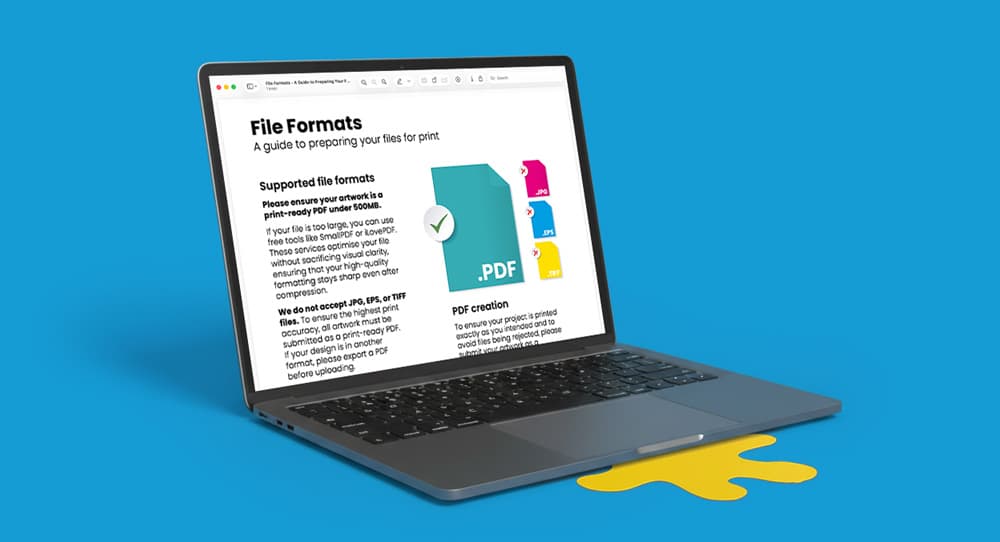
Need more help? Explore our additional support guides for expert advice on artwork setup, print file preparation, bleed and crop marks, colour setup, large format artwork and troubleshooting common print file issues.
Our support guides also cover paper stock selection, premium print finishes including spot UV and Scodix, preparing print-ready artwork and understanding the best setup for a wide range of printed products.
Before ordering, you can also use our artwork technical check tool to identify common artwork problems, including low resolution images, missing bleed, incorrect dimensions and RGB colour profiles.
You can also browse our full range of print products, including banners, business cards, flyers, posters and large format printing solutions.