Prices
Flattening your artwork can help prevent transparency, layers and complex effects from causing unexpected results when your file is processed for print. The exact process depends on the the software you have used to create your artwork.
This guide explains how to prepare flattened artwork using Illustrator, InDesign, Acrobat, Photoshop and Canva.
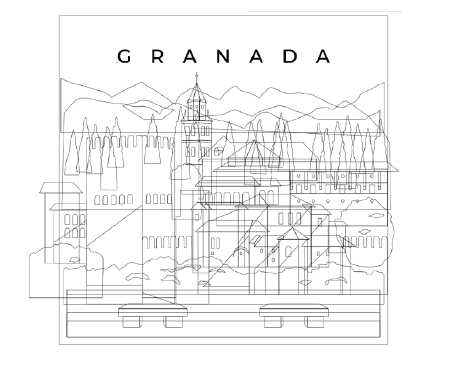
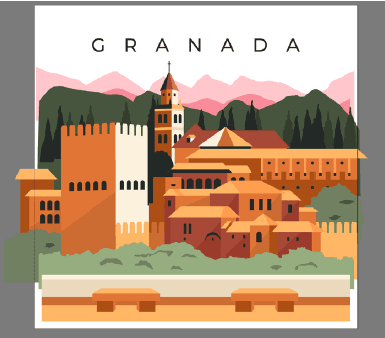
Design files can contain layers, transparency, shadows, blending effects, masks and other editable elements. While these are useful when creating your design, some complex elements can behave differently when the artwork is processed for print.
Flattening processes these elements so that the finished artwork is less dependent on live effects and editable features. Your design should still look the same, but the structure of the file may change.
Important: Always save an editable copy of your original artwork before flattening. Once some flattening processes have been applied and the file has been saved, they cannot be reversed.
Flattening can be useful if your artwork contains:
You do not need to flatten every file simply because it is being printed. If your PDF has exported correctly and all elements display as expected, additional flattening may not be necessary.
Keep your original design file so you can return to the editable artwork if you need to make changes. After flattening, always check your finished PDF carefully. Look at text, images, transparency, colours and any fine details to make sure everything still appears as intended.
Important: If your artwork contains specialist production elements such as a CUT path or spot colours for an additional print finish, follow the relevant artwork guides.
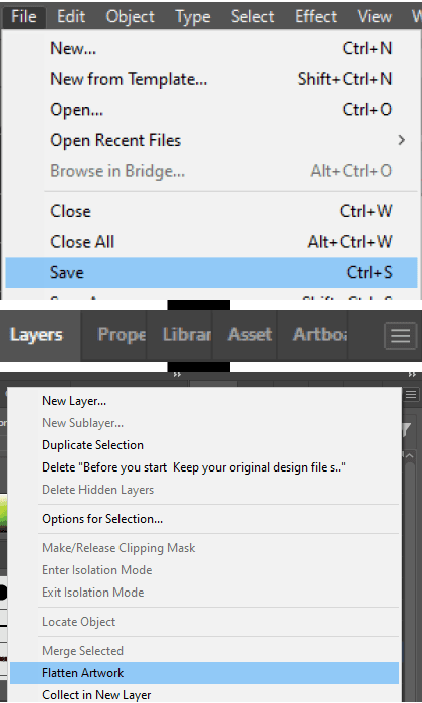
Illustrator allows you to flatten transparent artwork while preserving the appearance of your design:
Flattening transparency can divide complex artwork into a mixture of vector and raster elements while retaining its visual appearance, so always inspect the exported PDF before uploading it to WTTB.
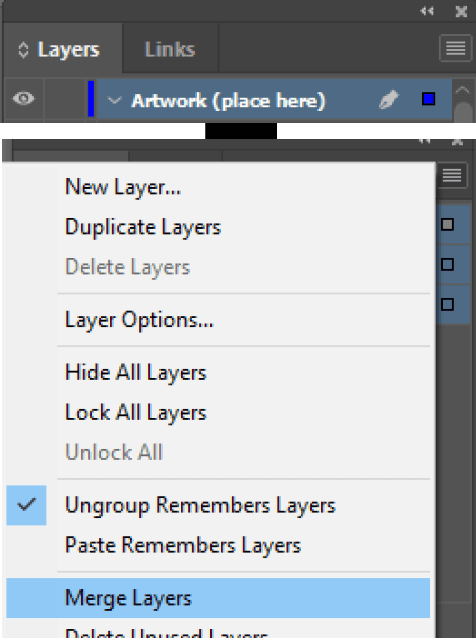
InDesign has a longwinded flattening process, which doesn’t work like other flattening processes. We suggest that instead, you merge the layers in InDesign:
Open the PDF afterwards and check that shadows, transparency, gradients, images and text look as intended.
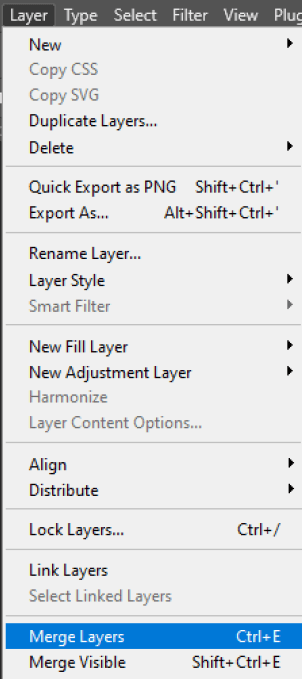
Photoshop artwork can be flattened directly from the Layers menu.
Unlike Illustrator and InDesign, Photoshop’s command combines the artwork into rasterised content.
Make sure your document has been created at the correct dimensions and resolution before merging.
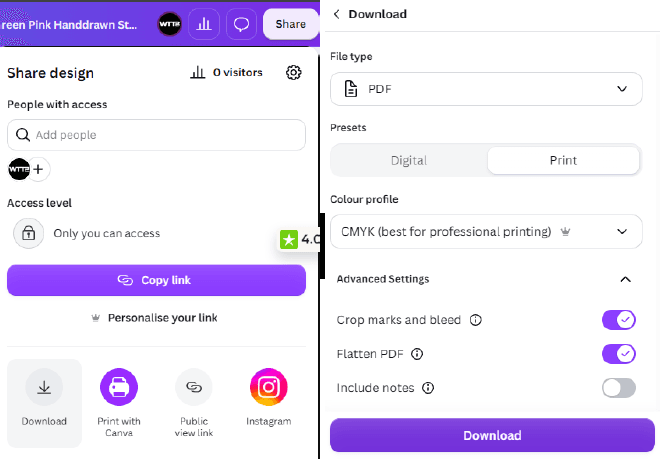
Canva includes a flattening option when downloading a PDF.
Flattening converts the multiple layers within the Canva design into flattened PDF artwork. Open the PDF and make sure everything is present before uploading it for print.
For more information on how to use Canva properly, check out our Canva Hub.
Before uploading, open the PDF and check it at a high zoom. Ensure all text is showing correctly, images are clear and sharp, shadows and gradients look correct, nothing is missing, the artwork is still the correct size and crop marks & bleed is included.
Flattening can help resolve problems caused by complex artwork, but it will not fix low resolution, incorrect dimensions or missing bleed.
If you need help, you can reach out to customer support or even use our Artwork Technical Check service to identify common issues before your file gets sent to print.
Need more help? Explore our additional support guides for expert advice on artwork setup, print file preparation, bleed and crop marks, colour setup, large format artwork and troubleshooting common print file issues.
Our support guides also cover paper stock selection, premium print finishes including spot UV and Scodix, preparing print-ready artwork and understanding the best setup for a wide range of printed products.
Before ordering, you can also use our artwork technical check tool to identify common artwork problems, including low resolution images, missing bleed, incorrect dimensions and RGB colour profiles.
You can also browse our full range of print products, including banners, business cards, flyers, posters and large format printing solutions.